

Talk to a product expert
4 Best AI Tools for SOLIDWORKS Users in 2026


The best AI tools for SOLIDWORKS users in 2026 include CoLab for design review and peer checking, SimScale for simulation and validation, Neural Concept for AI-driven physics prediction and design exploration, and nTop for computational design and topology optimization.
But before you add another AI platform to your engineering stack, it’s worth considering what SOLIDWORKS already does. AI in SOLIDWORKS now covers repetitive CAD tasks, drawing creation, model troubleshooting, imported geometry, assembly work, and in-context assistance. For many day-to-day CAD tasks, the most practical AI tool may already be inside the software.
Third-party tools become more relevant after the CAD is created and ready to progress to the next stage. You may want to check a drawing against your company standards before review, run or accelerate a simulation, evaluate more design alternatives, optimize geometry against defined constraints, or find feedback from a previous design that should inform the one you are working on now. Those additional steps either aren’t easily done in SOLIDWORKS, or you need purpose-built tools to achieve them.
With that in mind, this guide starts with the AI capabilities already available in SOLIDWORKS, then compares four tools that add different capabilities to your workflow.
What AI tools are already available in SOLIDWORKS?
Much of the current AI in SOLIDWORKS is focused on tasks that designers perform directly in the CAD environment. The broader roadmap extends into engineering knowledge, validation, and more generative capabilities, but the most mature functionality today still centers on making CAD authoring and troubleshooting faster.
That includes three broad categories.
Task automation with the Design Assistant Suite
The SOLIDWORKS Design Assistant uses machine learning to reduce repetitive actions during modeling and assembly work.
Command Predictor looks at the commands you use during a session and suggests likely next actions. Instead of repeatedly navigating the CommandManager for common sequences, the engineer gets a shorter list based on what they have already done in the model.
Selection Helper applies a similar idea to geometry. After you select one or more faces or edges, it can identify other geometrically similar entities that you may want to select as part of the same operation, while Mate Helper reduces repetitive assembly work by helping apply similar mates to additional component instances.
Meanwhile, AI Fastener Recognition recognizes components that appear to be nuts, bolts, or washers and can automatically create SmartMates as those fasteners are inserted into an assembly.
Some recent AI capabilities take the same approach further. LEO can generate a macro from a natural-language description, select sets of parts, sketches, faces, and drawing entities from a written instruction, and assist with assembly optimization by analyzing factors such as open time, rebuild time, graphics load, and model complexity.
For a designer, these are practical uses of AI because they remove manual CAD operations without changing who is responsible for the design itself.
Intelligent troubleshooting with What’s Wrong Analysis
SOLIDWORKS also helps engineers diagnose failures in a parametric model.
The What’s Wrong workflow identifies rebuild errors and warnings associated with parts, features, and assemblies. If an upstream change has broken a reference or caused a dependent feature to fail, the engineer can use that information to trace the problem rather than working through the feature tree without a clear starting point.
AI is now being added around this existing troubleshooting workflow. Virtual Companion capabilities can provide additional engineering guidance on model issues and possible fixes.
It’s useful to be precise here because What’s Wrong Analysis itself isn’t a newly introduced AI capability. Dassault Systèmes is adding AI assistance around diagnostic tools that designers already use.
In-context guidance with AI Virtual Companions
Dassault Systèmes is also developing a group of SOLIDWORKS AI Virtual Companions, including AURA, LEO, and MARIE, across SOLIDWORKS and the 3DEXPERIENCE platform.
AURA focuses primarily on knowledge and context. Current capabilities include asking context-aware questions about an active design or project and retrieving relevant documentation and process knowledge. Dassault Systèmes also lists AURA as available with its Cloud Services offering.
LEO is more closely tied to mechanical design. Available and announced capabilities include CAD workflow automation, drawing creation, geometry selection, model troubleshooting, assembly performance analysis, and converting STEP and IGES models into editable parametric geometry.
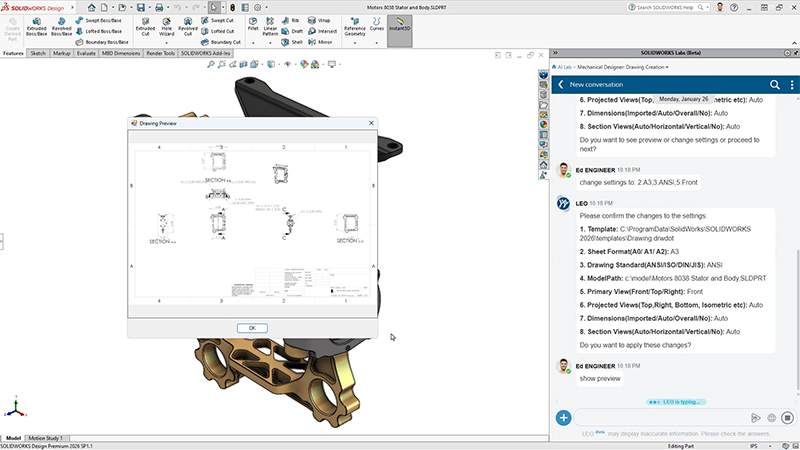
The wider 3DEXPERIENCE portfolio also includes browser-based tools such as xDesign, while Dassault Systèmes is steadily moving toward more generative AI and intent-to-CAD workflows across its design products.
Those capabilities can save real time in CAD, but many of the problems that force another design iteration appear when other engineering knowledge is brought to bear. Consider some examples, like when drawing doesn’t meet a company standard, or manufacturing identifies a process constraint, or an experienced engineer remembers why the team abandoned a similar approach on an earlier program. Getting that information into the process early can prevent another round of CAD changes or downstream rework. But enabling that earlier collaboration is a much larger challenge to solve than simply making the CAD session itself faster.
Where additional AI tools fit into the SOLIDWORKS workflow
Once other engineering questions enter the picture, different tools start to make sense.
A drawing may need to be checked against internal drafting requirements before another engineer reviews it. A part may need structural or thermal analysis. You may want to evaluate hundreds of geometry variations against the same performance targets rather than create and simulate each one manually. Or an engineer may need to know whether a similar issue was raised and resolved during an earlier program.
Those are separate engineering problems, and the AI involved is different in each case. Thinking about AI in CAD this way makes the categories easier to separate:
These AI-powered tools don’t necessarily compete with the capabilities already built into CAD. In most cases, they take CAD geometry or other engineering information and handle a specialized part of the process around it.
That specialization is already normal in engineering. Teams use purpose-built software to create CAD and run simulation, yet design review can still happen through screenshots, PowerPoint, email, Teams, and meetings. As a result, the software used to create the design may be highly specialized while the technical discussion that determines what changes is scattered across much more general-purpose tools.
Our broader guide to AI tools for mechanical engineers covers more products across these categories.
4 best AI tools for SOLIDWORKS users
1. CoLab: Best for AI-powered engineering decisions and design review
CoLab helps teams make better engineering decisions. The platform keeps review feedback, discussions, and decisions connected to the design so the team can understand what was raised during a review, what changed, and why certain decisions were made.
For SOLIDWORKS users, CoLab doesn’t replace CAD authoring. Engineers continue to create and revise parts and assemblies in CAD. When a model or drawing needs review, the designer can share native SOLIDWORKS files into CoLab, where reviewers can inspect the design, add feedback, and track issues through resolution in a browser.
That opens the review to people who may not work in SOLIDWORKS themselves. A manufacturing engineer, supplier, quality engineer, or other subject-matter expert can examine the design and comment against the relevant geometry without needing a SOLIDWORKS seat.
The reason to involve those people isn’t collaboration for its own sake. Design decisions often depend on knowledge the CAD designer doesn’t have alone, whether that’s a manufacturing constraint, a supplier requirement, or experience from an earlier program. When that input arrives late, the team may have to revisit work it thought was already settled. CoLab is designed to bring those people and that information into the review while changes are still easier to make.
Key capabilities
AutoReview performs a first-pass review of engineering drawings and 3D designs. On 2D drawings, AI can evaluate dimensions, tolerances, notes, symbols, title-block information, materials, and other drawing content against defined review criteria. On 3D models, CoLab can run deterministic geometric checks against criteria such as wall thickness, draft angles, rib geometry, inside radii, and other process-specific design-for-manufacturing rules.
Teams can also bring their own standards, checklists, and design guidelines into those reviews, while applicable third-party engineering standards can provide another source of review criteria. For a deeper look at that use case, see our guide to AI tools for CAD standards enforcement.
Human review happens against that same design. Reviewers can pin feedback to the relevant geometry, discuss it there, and keep the resulting decision with the review rather than splitting the technical conversation across screenshots, slides, email, and chat.
AI Lessons Learned extends that record across reviews by surfacing relevant feedback from earlier work when a similar design issue appears again. Operator can also search across information available in CoLab, including files, reviews, feedback, standards, and project documents.
How CoLab fits into a SOLIDWORKS workflow
A design review starts with the engineer creating or revising the design in SOLIDWORKS and sharing the relevant model and drawings into CoLab. The team can run the appropriate AutoReview checks, collect feedback, resolve the issues that require action, and then make the necessary geometry changes back in SOLIDWORKS before uploading the next iteration.
The SOLIDWORKS add-in supports native .sldprt and .sldasm files, so the designer does not need to export a STEP file simply to begin the review.
Kraken Robotics uses CoLab alongside SOLIDWORKS and PDM in this way. Its mechanical engineers can push 3D files from CAD into CoLab, assign them for review, and work through the feedback before the design progresses through the company’s review process.
AI becomes even more useful here because a finding isn’t the same thing as a decision. If AutoReview identifies an inside radius outside a company machining guideline, the engineer still has to decide whether the geometry should change or whether there’s a valid reason to keep it. That may require input from manufacturing or another SME.
In CoLab, that discussion stays with the finding and the design. If the same question comes up again, another engineer can see how the earlier team handled it instead of trying to reconstruct the decision from an old meeting or asking around to find someone who remembers.
That review history also carries forward. AGI, which uses CoLab with SOLIDWORKS among other engineering systems, reports a 63% reduction in design review cycle time and an eightfold increase in model review capacity.
Where CoLab is a good fit, and where it isn’t
CoLab is strongest when a design needs meaningful input from several people and that feedback has to remain understandable as the design changes. That’s different from a CAD assistant, which can create value for one designer without involving anyone else.
If a native SOLIDWORKS capability can solve the problem inside the CAD session, there may be no reason to leave CAD. But once the issue requires another engineer’s judgment, a company standard, previous review history, or expertise from outside the design team, the problem has moved beyond individual CAD productivity.
CoLab is also not a CAD authoring or CAE platform, so geometry changes remain in the authoring system and dedicated simulation work remains in tools designed for FEA, CFD, thermal analysis, and other physics.
2. SimScale: Best for AI-assisted simulation and design validation
SimScale is a cloud-based simulation platform for computational fluid dynamics (CFD), finite element analysis (FEA), thermal analysis, electromagnetics, and other multiphysics problems.
For an engineer working in SOLIDWORKS, it becomes relevant when the question is about physical performance. Will the part survive its expected load? Is an enclosure rejecting enough heat? What pressure drop should you expect through a particular flow path? Those questions require analysis of the physical conditions around the design rather than another CAD operation.
SimScale combines conventional numerical solvers with two AI layers that address different parts of that work.
Engineering AI and Physics AI
Engineering AI assists around the simulation process itself, including CAD preparation, materials and boundary conditions, solver configuration, meshing, execution, and results reporting. Companies can also configure agents around their own analysis procedures and standards.
Physics AI tackles a different constraint. Models trained on high-fidelity simulation data can predict performance for new design variations much faster than running another full numerical solve for every candidate.
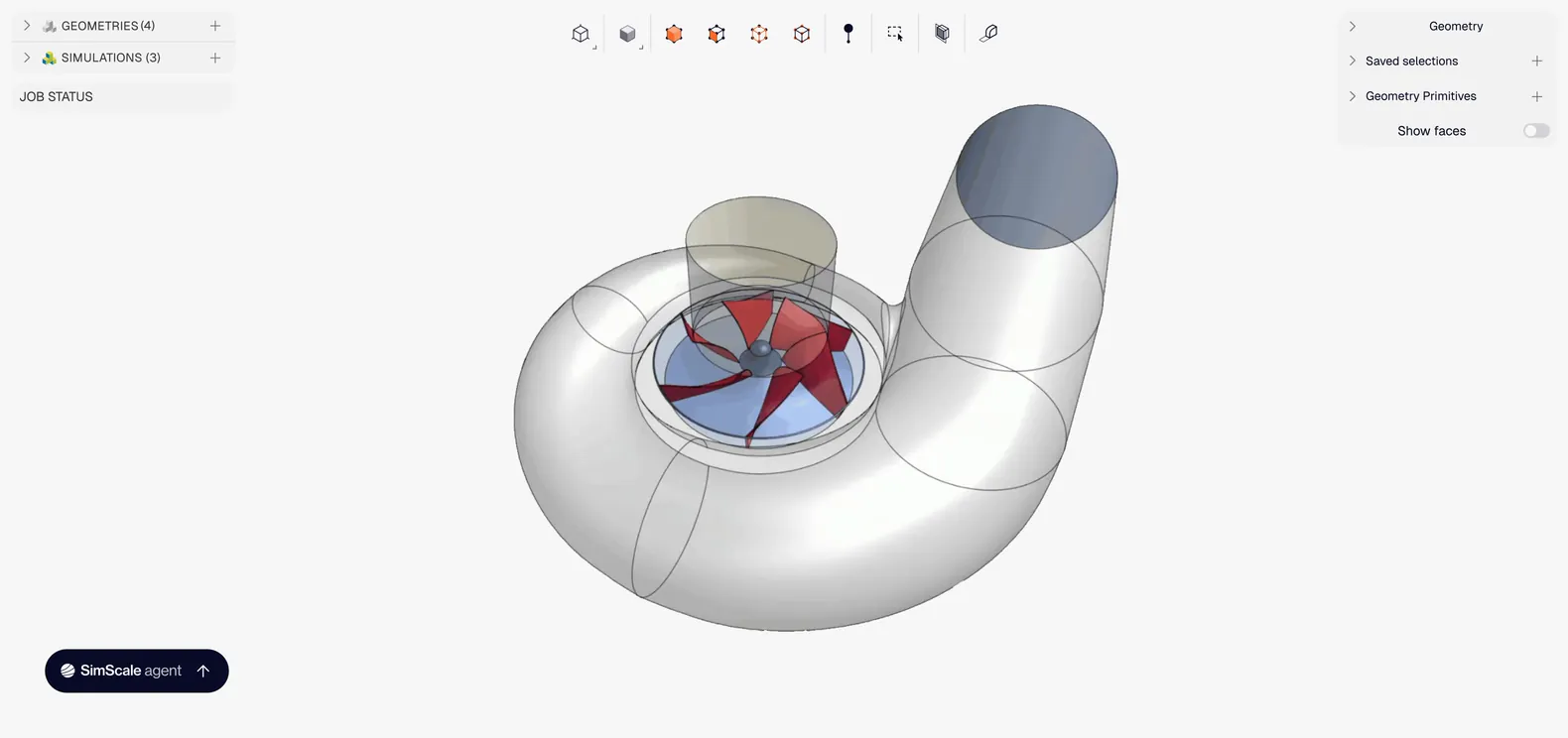
If a team needs to compare a large number of related designs, that prediction speed can make a broader design study practical. The engineer can screen more candidates with the trained model and then use conventional CFD, FEA, thermal, or multiphysics solvers for the higher-fidelity validation that still matters before a design is accepted.
How SimScale fits into a SOLIDWORKS workflow
SimScale supports native SOLIDWORKS parts and assemblies, so an engineer can upload .sldprt and .sldasm files rather than translating every model to STEP.
The simulation is prepared and run in SimScale, while geometry changes remain in SOLIDWORKS. When an updated design is imported, CAD associativity can retain load and boundary-condition assignments, reducing some of the repeated setup between iterations.
That makes SimScale a strong fit when simulation turnaround or local compute is constraining how many designs a team can evaluate. Cloud infrastructure also allows multiple cases to run without tying up the engineer’s workstation, which is one of the strengths regularly identified in SimScale reviews on G2.
The limitation is the same one that applies to any serious simulation environment: faster setup or prediction does not validate the engineering assumptions for you. The loads, materials, contacts, mesh, boundary conditions, and solver choices still have to represent the physical problem well enough for the result to be useful.
The platform’s CAD tools are also intended to support simulation rather than replace SOLIDWORKS. If the analysis leads to a substantial design change, the engineer will normally make that revision in CAD and then update the analysis model.
Our guide to AI-powered simulation tools for mechanical engineering compares SimScale with other platforms in this category.
3. Neural Concept: Best for AI-driven design exploration and physics prediction
Neural Concept is an engineering AI platform built around models that learn relationships between 3D geometry and physical performance.
For a SOLIDWORKS team, its strongest use case is not replacing CAD or running one more conventional simulation. It is using existing CAD and CAE data to predict how new geometry is likely to perform, then using those predictions to investigate more of the design space.
Suppose a team has already run hundreds of validated thermal simulations across previous versions of a product family. Neural Concept can use that type of dataset to train a surrogate model that predicts the behavior of new candidates much faster than solving each one from scratch. As the number of design variables grows, that can give engineers a practical way to compare far more combinations before deciding which ones warrant detailed analysis.
Key capabilities and workflow
Neural Concept builds geometry- and physics-aware models from engineering data, then uses those models to predict physical quantities for new designs. Companies can train them around recurring problems and proprietary simulation data rather than relying on a generic prediction model.
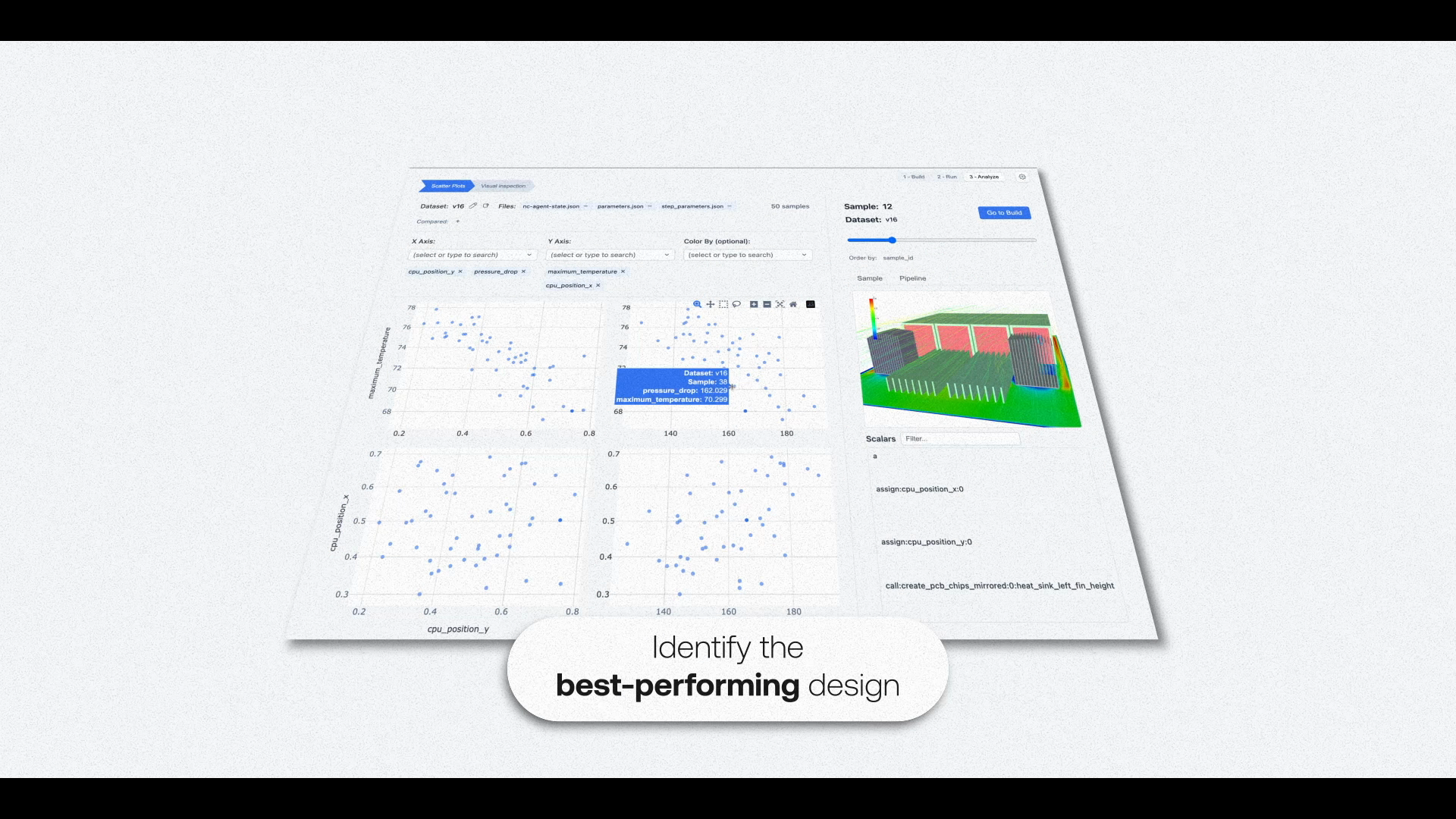
Its AI Design Copilot extends that approach into geometry generation. Engineers provide objectives and constraints, and the system can generate CAD-ready candidates for further evaluation and refinement.
For teams working in SOLIDWORKS, Neural Concept sits across the existing CAD and CAE stack. CAD designs and simulation results can contribute to the training data, while the resulting model is used to predict the performance of new candidates. Selected designs can then return to SOLIDWORKS for detailed modeling and to established CAE tools for full validation.
That position in the stack also distinguishes it from SimScale. SimScale provides the solver environment as well as AI-assisted setup and prediction. Neural Concept is more directly focused on building and deploying predictive engineering models around tools the company already uses.
Where Neural Concept is a good fit, and where it isn’t
The strongest case is a repeated engineering problem for which the organization already has enough representative data to train and validate a useful model. If each new design candidate would otherwise require another expensive CAE solve, the ability to make rapid predictions can expand the number of alternatives an engineer can reasonably investigate.
That same requirement creates the main limitation. A prediction is only useful within the part of the design space the model has learned and been validated against. Teams therefore need to define the problem, prepare representative data, validate the model, and understand where it can be trusted.
That makes Neural Concept a more natural fit for recurring product classes and repeated prediction problems than for an occasional one-off analysis. There is also substantially less independent software-review data available for Neural Concept than for a platform such as SimScale, so much of the published information currently comes from vendor and customer material rather than large third-party review datasets.
4. nTop: Best for computational design and topology optimization
nTop is a computational design platform used to create and optimize geometry that can become difficult or impractical to construct manually in conventional feature-based CAD.
Its implicit modeling approach represents geometry mathematically rather than requiring every shape to be built through a traditional sequence of sketches and features. Engineers can combine geometry, equations, simulation fields, and other inputs into reusable design workflows, which makes the approach particularly useful for lattices, field-driven geometry, topology-optimized structures, and other complex designs.
For an engineer using SOLIDWORKS, nTop becomes relevant when the geometry itself is difficult to create or iterate efficiently with a conventional feature tree.
Key capabilities and workflow
Implicit and computational modeling allow engineers to define geometric relationships through reusable blocks, while topology and parameter optimization can modify that geometry against objectives such as reducing mass while maintaining stiffness or keeping stress within an allowable range.
nTop can also use spatial engineering data to drive local changes in geometry. A lattice, for example, does not have to use the same structure throughout a part; simulation fields or other inputs can influence how it changes from one region to another.
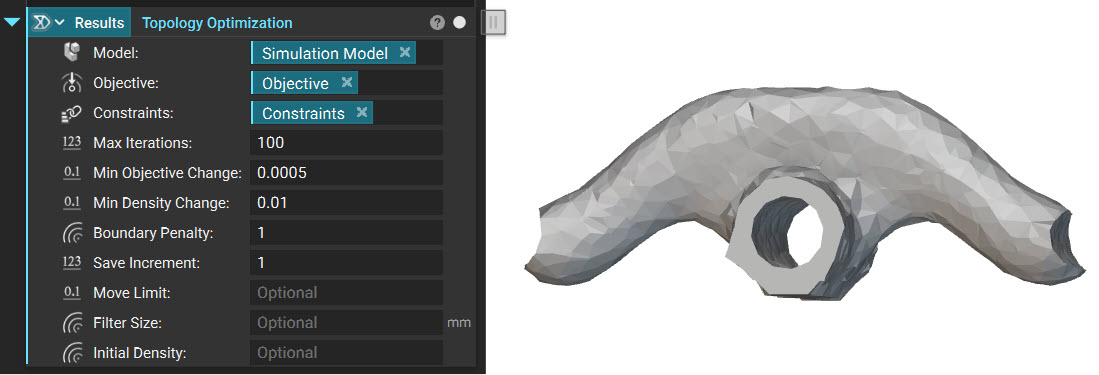
A designer can define the baseline geometry, interfaces, mounting locations, packaging envelope, or other constraints in SOLIDWORKS and import that information into nTop. The platform supports native .sldprt and .sldasm files along with STEP, Parasolid, CATIA, Creo, NX, Inventor, and other engineering formats.
The computational or optimization work then happens in nTop, after which the resulting geometry can be exported for downstream CAD or manufacturing work. SOLIDWORKS can continue to handle the wider assembly, drawings, and conventional product definition while nTop handles the geometry that benefits from a computational representation.
Machine learning can also become part of that process. nTop added ONNX neural-network import, allowing a trained model to act as a faster surrogate for engineering relationships that would otherwise be expensive to calculate repeatedly during an optimization study.
Where nTop is a good fit, and where it isn’t
nTop’s strength is also what makes it specialized. Engineers can create and iterate geometry that would be cumbersome in conventional CAD, and reusable computational logic means they don’t have to remodel each variation from scratch. nTop reviews on G2 regularly point to complex geometry and lattices as important strengths.
However, implicit and computational modeling require a different way of thinking about the model, so there is a learning curve for engineers accustomed to sketches, features, and conventional parametric history.
The downstream handoff also depends on what needs to happen to the resulting geometry. A detailed lattice intended for additive manufacturing may never need to become a normal editable SOLIDWORKS feature tree, while another design may need to return to CAD for assembly integration, drawings, or further detailing.
If the actual problem is drawing review, engineering knowledge retrieval, or ordinary CAD automation, nTop is simply solving a different problem.
How to choose the right AI tool for SOLIDWORKS
The best option depends on where the current process is constrained. If repetitive CAD work is consuming the time, start with the tools already available in SOLIDWORKS. Another application only earns a place in the stack when it solves a problem the existing environment does not handle well enough.
Start with the engineering problem you need to solve
That means getting more specific than “we want to use AI.” A team that spends hours checking drawings against the same standards has a different problem from one that cannot simulate enough design variants before a deadline. Another team may struggle to create complex optimized geometry, while another keeps losing useful feedback from previous reviews.
Once you know where the friction is, you can judge a tool against something concrete: what work it removes, what information it needs, and whether it improves the part of the process that is actually slowing you down.
Look closely at how it works with SOLIDWORKS
“Integrates with SOLIDWORKS” can mean very different things. Some tools accept native .sldprt and .sldasm files, while others depend on STEP, Parasolid, or another neutral format. Assemblies may require their referenced components to travel with them, and PDM or PLM can introduce another layer of version and access control.
Those details affect how much work the engineer has to repeat as the design changes. A useful integration should make it easier to move the right design information into the next activity without creating a new manual process around every revision.
Understand what the AI is actually using
The tools in this guide work from very different kinds of engineering information. SimScale’s Physics AI learns from simulation data. Neural Concept trains predictive models around CAD and CAE data. AutoReview can evaluate drawings and models against defined review criteria and bring previous review information into the process. nTop can use a trained surrogate model inside a computational design study.
There is therefore no single measure of “AI capability” that makes one of these products better than the others. The more useful comparison is whether the system has the inputs required for the engineering problem you need it to help solve.
The result also has to be validated appropriately. A simulation engineer still needs to check the assumptions behind an analysis, just as a team using a surrogate model needs to understand where that model has been tested. During design review, an AutoReview finding may identify something worth investigating, but an engineer still decides whether the design needs to change.
Consider deployment, security, and who needs to use it
Some capabilities can be enabled inside software your team already uses. Others require model training, standards configuration, workflow changes, or adoption across several engineering functions.
That difference affects where the return comes from. Command prediction may save one designer small amounts of time throughout the day, while a review platform may reduce waiting and repeated work across engineering, manufacturing, quality, suppliers, and other reviewers.
The same scrutiny should apply to data security. CAD models, drawings, simulation data, standards, and design history can contain sensitive intellectual property, so understand how each vendor processes that information, who can access it, and whether customer data is retained or used for model training. Our guide to how engineering AI handles CAD data and model training covers those questions in more depth.
A simple way to narrow the options
If the main problem is design review, first-pass drawing or model checks, or reusing feedback from earlier reviews, look at CoLab.
If you need CFD, FEA, thermal, or other physics-based analysis, particularly with cloud simulation and AI-assisted prediction, look at SimScale.
If your team has enough simulation data to predict performance across far more design candidates than it can practically solve one by one, look at Neural Concept.
If the constraint is creating lattices, topology-optimized structures, or other computationally defined geometry, look at nTop.
Bring AI into the engineering decisions that matter with CoLab
The tools in this guide can make different aspects of mechanical engineering faster. SOLIDWORKS can reduce some of the effort involved in authoring CAD, SimScale can accelerate parts of simulation, and Neural Concept or nTop can help engineers explore more design alternatives.
But faster individual tasks don’t necessarily mean a faster engineering program. A design can still lose days waiting for the right reviewer, move forward without manufacturing input, or repeat a mistake because the reasoning from an earlier program was never captured somewhere the next engineer could find it.
That’s the problem CoLab is designed around. Engineers can share native SOLIDWORKS CAD into CoLab for review, run first-pass checks with AutoReview, and get feedback from the people who need to weigh in before the design progresses further.
Because the feedback, discussion, and resulting decisions remain connected to the design, each review also creates information that can be useful later. AI Lessons Learned can surface relevant feedback from previous reviews, while Operator can help engineers find information across files, standards, reviews, and other sources when a new question comes up.
That becomes more important as engineering AI gets easier for every company to buy. The AI model itself won’t know why your team rejected a design three years ago or what an experienced manufacturing engineer has learned across several product generations unless that information is available to it.
As AI capabilities for mechanical engineering continue to improve, that accumulated engineering knowledge becomes a bigger part of the advantage. CoLab helps capture more of it while engineers are already reviewing designs, then makes it available again when the next decision has to be made.
Book a demo to see how CoLab works alongside SOLIDWORKS for AI-powered peer checking, design review, and engineering knowledge reuse.



Frequently Asked Questions
How did we decide which tools belong on this list?
We looked for software that solves a specific engineering problem for SOLIDWORKS users rather than simply including every product that markets itself as “AI for CAD.” Each tool needed a clear role alongside SOLIDWORKS, whether that was design review, simulation, design exploration, or computational design.
We also considered the maturity of the product, the quality of its technical documentation, customer examples, and independent reviews where enough were available. Finally, we looked at how easily the tool fits into an existing SOLIDWORKS workflow, including native file support, CAD and CAE interoperability, and how much additional work is required to move between systems.
How do third-party tools differ from SOLIDWORKS AI Virtual Companions?
SOLIDWORKS Virtual Companions such as AURA, LEO, and MARIE bring AI assistance directly into SOLIDWORKS and the 3DEXPERIENCE platform, with current capabilities focused largely on CAD automation, troubleshooting, drawing creation, geometry selection, and access to engineering information.
Third-party tools add capabilities in other parts of the process. CoLab focuses on design review and engineering knowledge, SimScale on simulation, Neural Concept on physics prediction and design exploration, and nTop on computational design and optimization.
For a closer look at the first category, see our guide to whether SOLIDWORKS AI features can replace design review software.
Can AI assist with generative design and reverse engineering?
Yes, although the two solve different problems. Generative and computational design use objectives and constraints to create or evaluate candidate geometry. nTop supports that type of optimization, while Neural Concept’s AI Design Copilot can generate CAD-ready alternatives around defined engineering requirements.
Reverse engineering starts with existing geometry instead. Dassault Systèmes is also adding AI-assisted capabilities for converting imported STEP and IGES geometry into editable parametric models, reducing some of the manual work required when native feature history is unavailable.
How can AI help with legacy manufacturing documentation?
Older engineering information is often difficult to search because it lives in scanned drawings, PDFs, or legacy file systems. Optical character recognition and drawing-analysis tools can extract information from those documents, while geometry or shape matching can help engineers find similar historical parts even when they don’t know the original part number.
Review history presents a related problem. In CoLab, feedback and decisions are captured while the review happens, which makes it easier for a future engineer to find both the earlier issue and the reasoning behind how the team handled it.
About the author
Cody Colbert is a Product Marketing Manager at CoLab Software, focused on emerging AI applications in hardware engineering and product development.

