
AI for Engineering Drawings: Best Tools for Review, Search, and Generation
Compare AI tools for engineering drawing review, search, and generation. Learn what each category does and how to choose software for your engineering team.


AI tools for engineering drawings help mechanical engineers review 2D drawings for errors, search for similar parts and previous design decisions, and generate manufacturing drawings from 3D CAD models. Depending on the software, these tools can identify missing dimensions, flag potential GD&T issues, check drawings against company standards, automate time-consuming drafting tasks, and preserve engineering knowledge for use in future product programs.
The best AI tools for engineering drawings in 2026 include CoLab AutoReview and bananaz for drawing review; CoLab Operator, CADDi Explorer, VizSeek, and Leo AI for drawing search; and Drafter, DraftAid, and SOLIDWORKS for drawing generation. Each category solves a different engineering problem, so the right software ultimately depends on your team’s requirements.
Vendor Note: This guide is brought to you by CoLab. We develop AI drawing review and search software, so we are active participants in this market. However, no single platform solves every engineering drawing challenge in 2026. We’ve kept this comparison objective, category-focused, and grounded in technical capabilities to help you build the best AI toolkit for your team.
This guide focuses on mechanical engineering and manufacturing drawings. For AI applications involving CAD design, simulation, and PLM, see our guide to the best AI tools for mechanical engineers.
Top AI drawing review tools for engineering teamsAI drawing review
For years, engineering teams have used CAD rules engines to automate drawing checks. These systems are effective at enforcing predefined requirements, but there’s a practical limitation: someone on the team has to routinely configure and maintain those rules.
Much of a manufacturer’s engineering knowledge isn’t stored that way. Rather, it lives in lengthy standards documents, manufacturing guidelines, design review comments, and lessons learned from previous programs. Translating all that information into automated checks is a significant undertaking, especially when requirements change.
AI drawing review introduces different capabilities and new opportunities. Tools can interpret engineering drawings against written requirements, identify potential issues, and surface relevant knowledge from previous designs into the review. They don’t eliminate the need for engineering judgment, but they can help teams apply more of their existing knowledge without relying exclusively on manually configured rules.
The three tools below take different approaches to drawing review, particularly in how they interpret requirements and connect automated findings to the broader design review process.
CoLab AutoReview
AutoReview is CoLab's AI peer checker. Its specialized agents inspect drawings for missing information, conflicting dimensions or tolerances, potential GD&T issues, and deviations from company standards and checklists. Rather than requiring engineers to program every check as a CAD rule, it can work from their existing engineering guidance.
For example, AutoReview can analyze a drawing in a few minutes and flag missing dimensions, conflicting information, or inconsistencies between a drawing's annotations and title block. It can also check drawings against company-specific engineering guidelines, helping engineers catch issues before they reach suppliers or manufacturing.
What distinguishes CoLab is how AI-generated findings connect to the broader design review process. AutoReview operates within CoLab's collaborative review environment, where engineers and suppliers can discuss findings, assign responsibility, and track issues through resolution. The resulting feedback and decision history can then be retrieved through Operator (more below), helping engineers apply lessons from previous reviews to future designs.
AutoReview is also applicable to 3D CAD review.
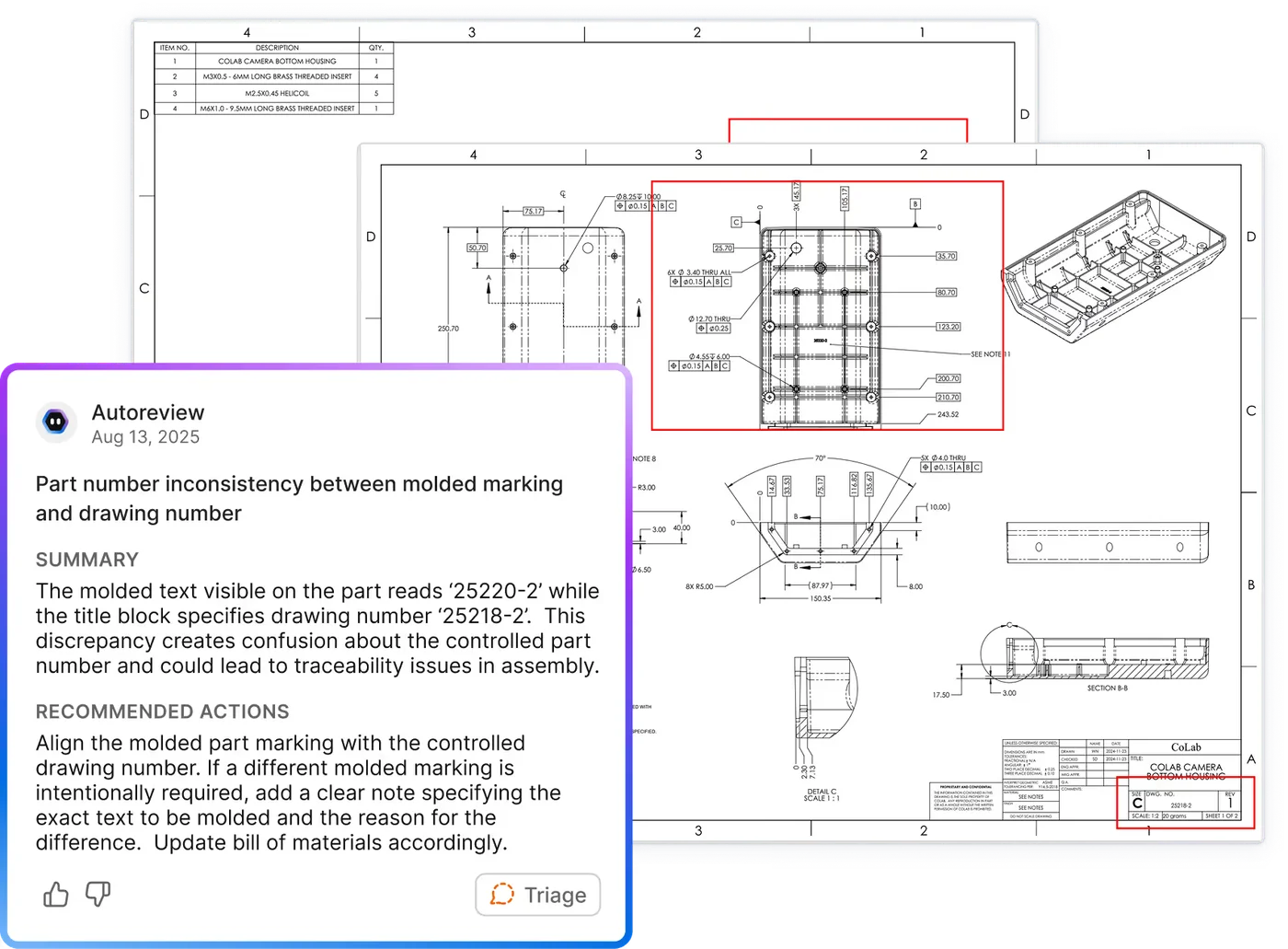
For a practical demonstration, watch AutoReview perform first-pass checks on an engineering drawing.
bananaz
bananaz combines automated standards checking with CAD revision analysis. Its software reads native CAD and PDM information, compares changes between 2D revisions, and generates redlines and change documentation.
This makes it relevant for engineering-change reviews where teams need to examine revisions alongside company drafting requirements. Unlike other tools that focus on AI-powered reviews with ongoing engineering collaboration and knowledge reuse, bananaz emphasizes automating work directly within CAD and PDM systems, including design changes, approvals, and release documentation. Its broader offering also includes AI-assisted CAD analysis and design automation.
How to choose an AI drawing review tool
The best test of an AI drawing review tool is whether it catches issues your engineers would otherwise miss. Give vendors a mix of known-good drawings and examples that previously led to supplier questions, rework, or engineering changes. See what the software catches, what it misses, and how many false positives it generates.
Pay particular attention to GD&T accuracy and whether the tool can apply your company’s own engineering standards and lessons learned, not just generic drafting rules.
Finally, look at what happens after an issue is identified. Does the tool simply generate a report, or does it put actionable feedback directly on the drawing, where engineers can discuss findings, assign responsibility, and track issues through resolution?
For more tools, see our AI drawing checker comparison.
Top AI drawing search tools for mechanical engineersAI drawing search
Engineers don’t search for an old drawing just to admire the geometry. More often than not, they are trying to reuse a part, validate a decision, avoid repeating a mistake, or understand a supplier constraint. Finding a similar shape is one piece of that project, but finding the context surrounding it is often much more difficult. Fortunately, the following AI tools can help fill that gap.
CADDi Explorer
CADDi Explorer connects drawings and CAD with information such as purchasing history, BOMs, supplier data, and quality records.
The platform’s similarity search is particularly useful for part standardization and sourcing. A team can find comparable parts and investigate what they cost, where they were purchased, or whether similar designs have had quality issues.
CoLab Operator
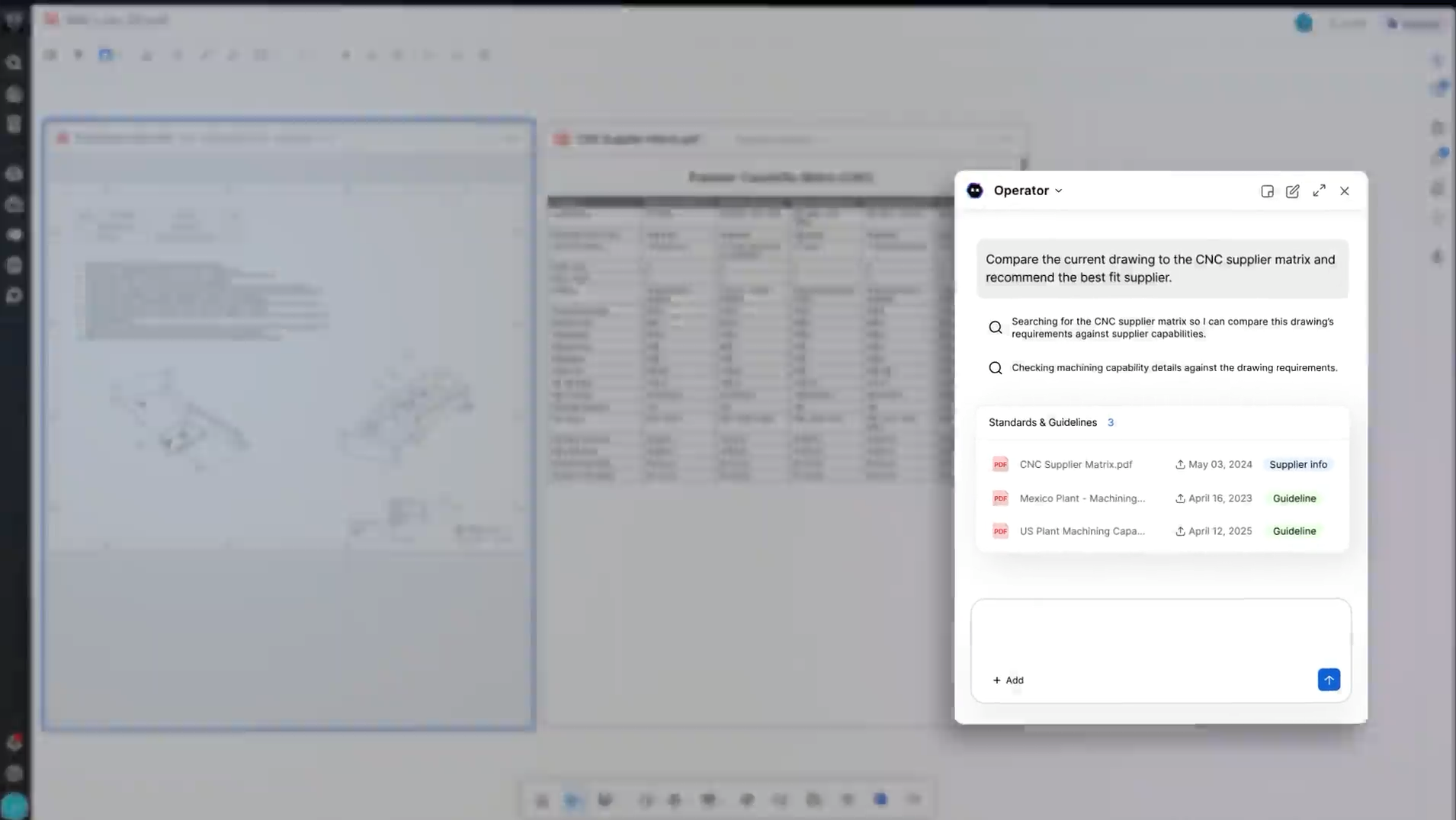
CoLab Operator goes beyond the step of retrieving a matching file. It's an AI interface for searching and analyzing engineering information available in CoLab, including drawings, standards, and previous design-review feedback, and for working with specialized AI agents.
Imagine an engineer is reviewing a pump assembly and wants to know why a seal choice changed on the last program. Finding an older drawing may be easy enough, but tracking down the manufacturing concern or supplier comment behind that change is much harder. Operator can search similar drawings and 3D parts in accessible CoLab workspaces, bringing relevant past feedback into the current review.
Unlike tools primarily focused on finding existing parts or analyzing engineering data, Operator is connected to the broader engineering review process. Engineers can use AutoReview to identify potential issues, collaborate on their resolution, and use Operator to retrieve the feedback and decisions captured during those reviews. The goal isn't just to reuse a design, but to reuse the engineering judgment that shaped it. CoLab's engineers show how this works in our breakdown of five Operator use cases.
VizSeek
VizSeek focuses on visual and geometric search across CAD models, drawings, sketches, photographs, and related files. It’s a useful tool when engineers recognize a part by its shape but don’t know its number or how it was named. That’s a practical advantage for large legacy libraries where naming conventions have changed repeatedly.
Leo AI
Leo AI searches native CAD and connected PDM/PLM information using shape, function, or natural-language requirements. Its support for systems such as Windchill, Teamcenter, and SOLIDWORKS PDM makes it a candidate for teams whose main problem is locating existing designs across engineering repositories. Leo also offers CAD analysis and generation, but search and reuse are the relevant capabilities here.
What if you need drawing data, not another drawing?
For quoting and manufacturing, the task before you may be extracting dimensions, tolerances, threads, finishes, and material requirements into another system.
Werk24 provides an API that converts drawing information into structured data for workflows such as RFQ processing. If you’re handling hundreds of customer drawings for quotations, that capability might be more valuable to you than a similarity search.
How to choose an AI drawing search tool
Finding the right drawing is only half the battle. Engineers also need to understand whether a similar design has been used before, what problems were discovered, and why certain decisions were made.
When evaluating vendors, ask them to find an existing part without relying on its filename or part number. Then see whether the tool can retrieve related drawings, previous design review feedback, and the engineering decisions behind the design.
Consider how that knowledge can be used once it's found. Can engineers bring a previous lesson directly into a new design review? Can the tool help identify a problem that was discovered and resolved on an earlier program? And will the decisions made today be available to engineers reviewing designs tomorrow?
Also verify revision accuracy, source traceability, access permissions, and which engineering systems the tool can actually search.
Top AI drawing generation toolsAI drawing generation
Faster drafting isn’t the same thing as producing a release-ready drawing.
Creating views, dimensions, and title blocks takes time. But the drawing still has to communicate design intent to manufacturing. That’s why the most important question vis-a-vis drawing generation isn’t how quickly an AI tool produces a sheet, but how much engineering work still remains before someone can safely and confidently release it downstream.
Drafter
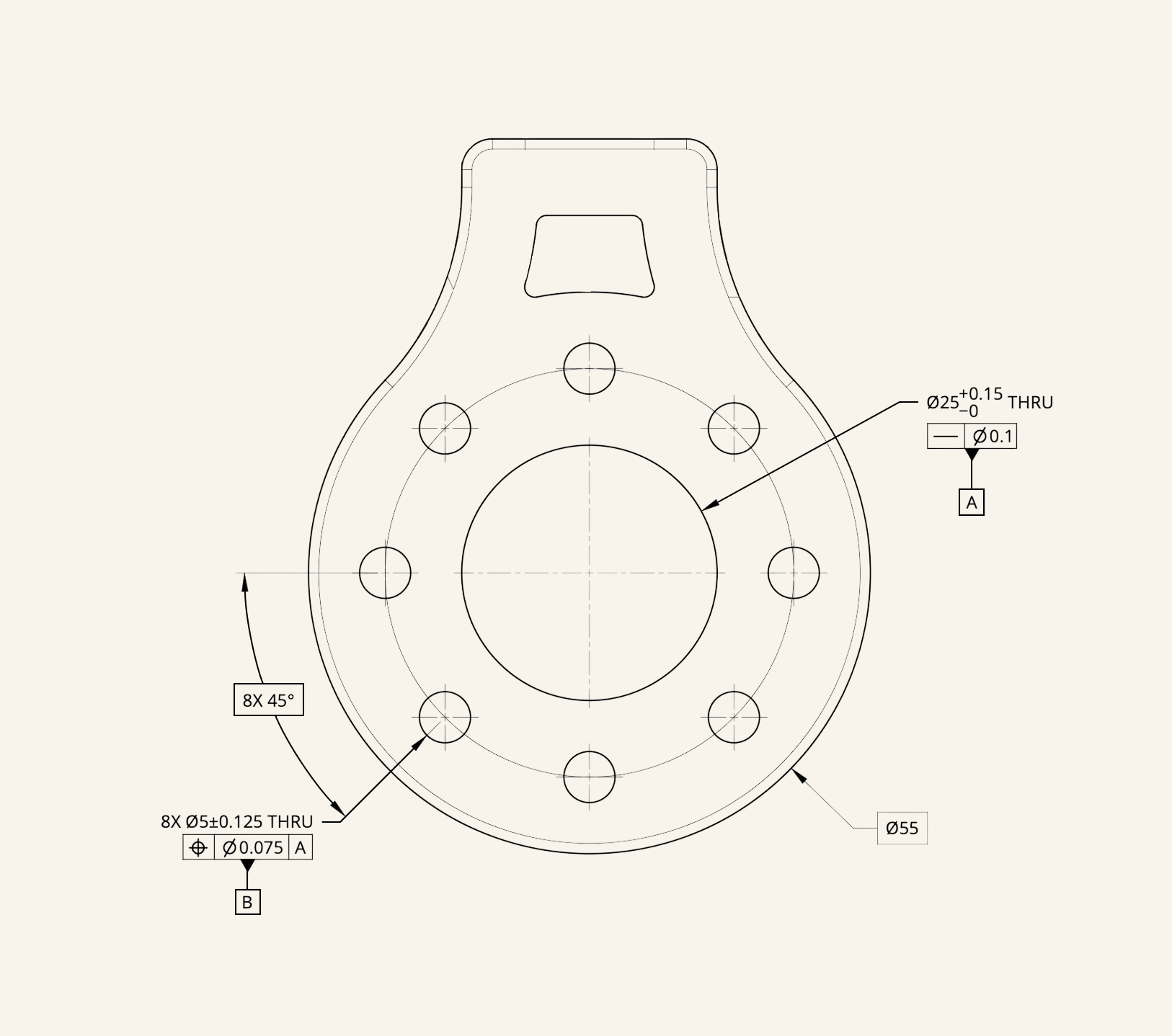
Drafter creates dimensioned and toleranced drawings through SOLIDWORKS and NX integrations. Engineers specify design intent, then Drafter uses it to place datums, apply tolerances to critical features, and create native CAD drawing elements aligned with ASME Y14.5-2018. Drafter also offers Redliner for reviewing existing drawings.
DraftAid
DraftAid automates drawing production using existing models, examples, and company templates, with SOLIDWORKS and Inventor support. It’s aimed at recurring fabrication-drawing work, including sheet metal, extrusions, and machined parts. One limitation worth pointing out is that DraftAid says engineers must still add tolerances manually, though predefined model tolerances may transfer. GD&T generation is not yet listed as a supported capability.
SOLIDWORKS Auto-Generate Drawings
SOLIDWORKS Auto-Generate Drawings automates the creation of 2D drawings from 3D parts and assemblies. Available through eligible SOLIDWORKS Design and 3DEXPERIENCE configurations, it can generate drawing sheets, standard and section views, dimensions, and hole callouts using predefined templates and drafting standards.
Because the functionality is integrated into SOLIDWORKS, engineers can refine the generated drawings directly within their existing CAD environment.
Other AI tools for engineering drawing conversion
Some AI tools work in the opposite direction. Rather than generating a manufacturing drawing from a 3D CAD model, they convert existing drawings into editable geometry or reconstruct 3D models from 2D documentation.
These tools are particularly useful for manufacturers working with legacy parts, supplier drawings, or designs where the original CAD files are unavailable.
How to choose an AI drawing generation tool
To really test the capabilities of a drawing generation tool, use an awkward, real part, not a clean vendor-provided example. Inspect which dimensions and GD&T are created automatically versus left to the engineer. Also investigate whether the result stays editable in your CAD system, and what breaks when the model changes. A drawing that looks finished but needs extensive checking or repair may not actually save you much time.
What about AI for construction drawings?AI for construction drawings
In architecture, engineering, and construction (AEC), the term engineering drawings often refers to building plans, structural drawings, and construction documentation rather than the mechanical part and assembly drawings covered in this guide.
AI tools for construction drawings address different problems, including checking coordination across drawing sets, identifying discrepancies between plans and schedules, and reviewing documentation for omissions.
For example, Bluebeam Max includes Smart Review capabilities for identifying missing sheets, inconsistent gridlines, and other issues across construction documents.
If you’re evaluating AI for architectural or construction drawings, you will need a different category of software from the manufacturing drawing review, search, and generation tools covered here.
Put your engineering knowledge to work with AIApply your engineering knowledge
Our view at CoLab is that the most useful AI for engineering drawings doesn’t stop when it flags a possible error, surfaces a part from your database, or generates a “pretty good” drawing. It must help engineers apply their company’s proprietary knowledge, involve the experts who need to weigh in, and resolve issues before drawings reach manufacturing.
The real promise of AI isn’t just generating drawings faster or making existing drawings easier to find. It’s making sure the lessons learned from previous designs help engineers get the next one right.
Think about how many drawing issues your team has already solved. These could be tolerances that caused manufacturing problems, requirements that suppliers questioned, or mistakes caught during previous reviews. How many of those lessons are consistently applied to new drawings?
Book a demo to see how CoLab can help your team catch recurring drawing issues and apply your engineering knowledge earlier in the design process.

Frequently Asked Questions
How does AI read and interpret engineering drawings?
The way software interprets a drawing depends partly on the information available in the source file.
For scanned drawings and raster PDFs, AI typically combines optical character recognition (OCR) with computer vision to identify dimensions, symbols, notes, and drawing regions. Vector PDFs preserve geometric entities and text that may be easier to extract separately. Native CAD files can provide additional information about geometry, features, and product manufacturing information (PMI).
The challenge is associating that information correctly. Recognizing a position tolerance is one task; identifying the features it controls and interpreting the associated datum references is another.
Drawing-review tools also need access to relevant engineering requirements. A callout may conform to ASME Y14.5 while conflicting with a company's manufacturing guidelines. Some tools combine drawing interpretation with standards, checklists, and previous engineering decisions to identify those discrepancies.
These technical differences become especially relevant when comparing automated drawing checkers.