
Product updates
New updates and improvements to CoLab.

Multi Company Switcher
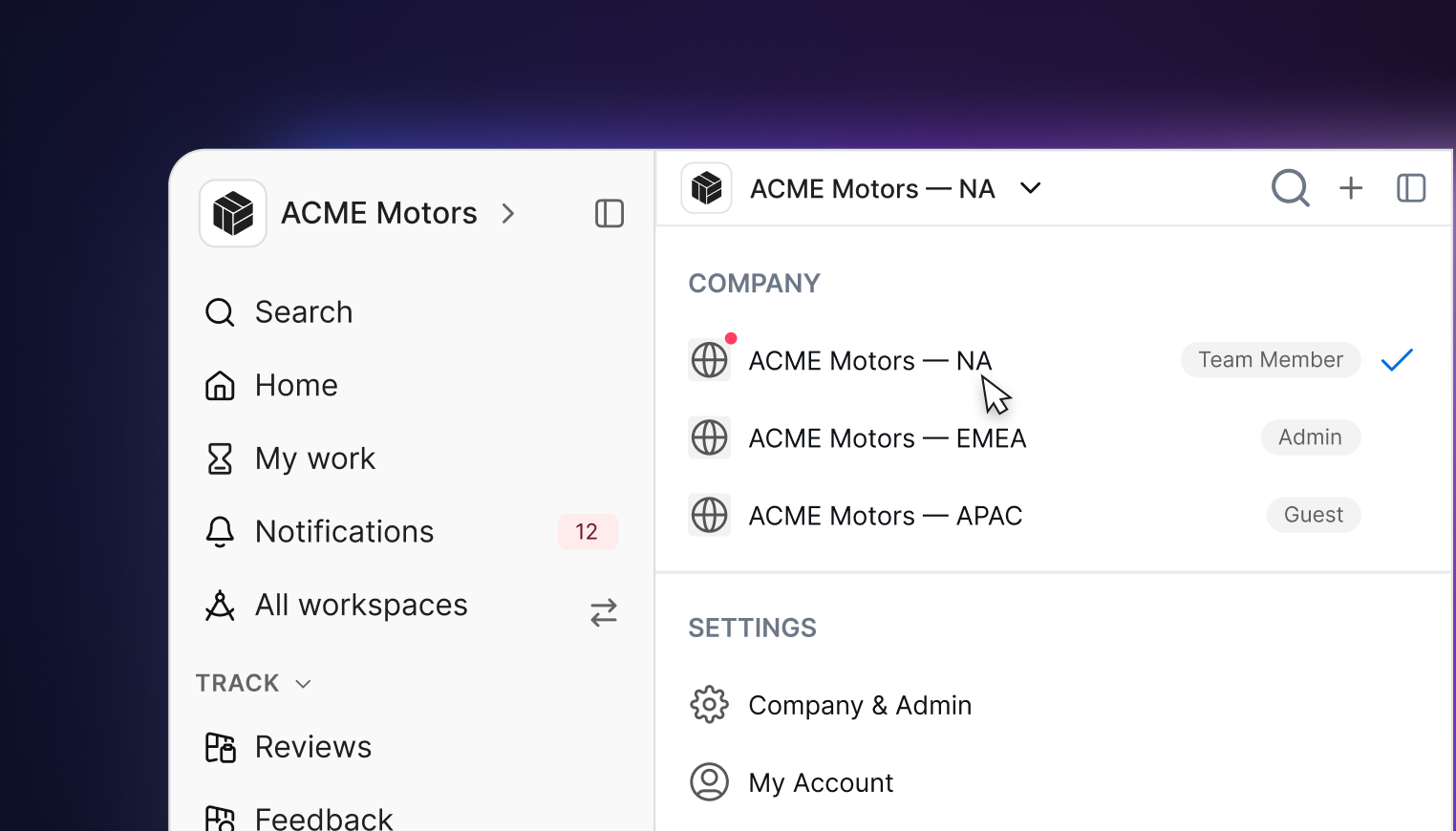
Users with access to more than one CoLab environment can switch between them without signing out and back in. This covers people who work across separate organizations as well as those whose company runs CoLab separately across divisions. To switch, click the CoLab logo in the navigation and choose the environment you want to switch to.
CoLab Desktop Application
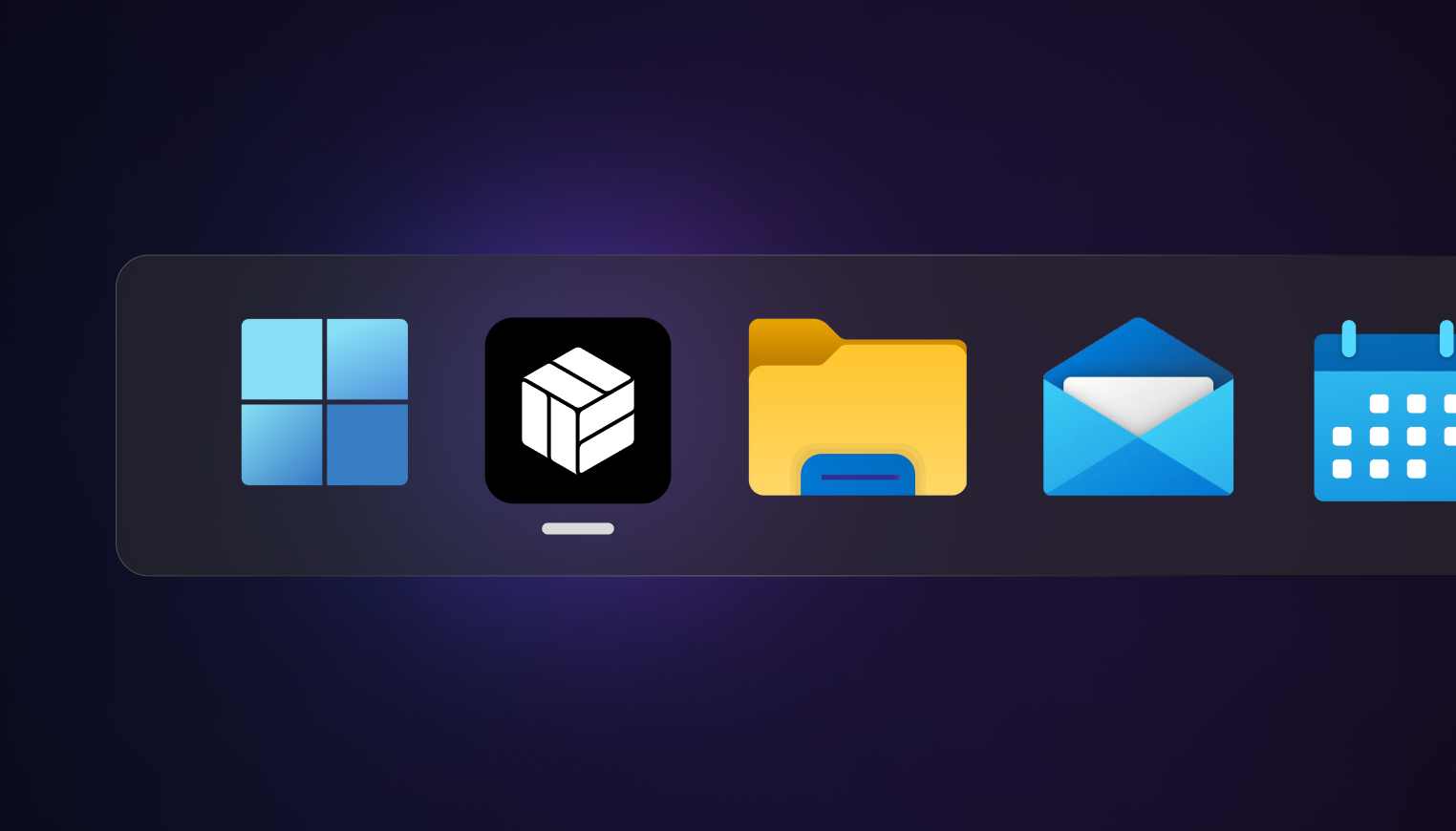
CoLab is now available as a desktop app. It's the same application you use in the browser, running in its own window that you open directly from your desktop, separate from your browser tabs.
The app stays up to date on its own, so you're always on the current version. Running outside the browser also gives you a cleaner, full-screen view, which is useful when you're working in CoLab for long stretches or presenting a review.
You can download it from the settings menu in CoLab.
New Navigation System
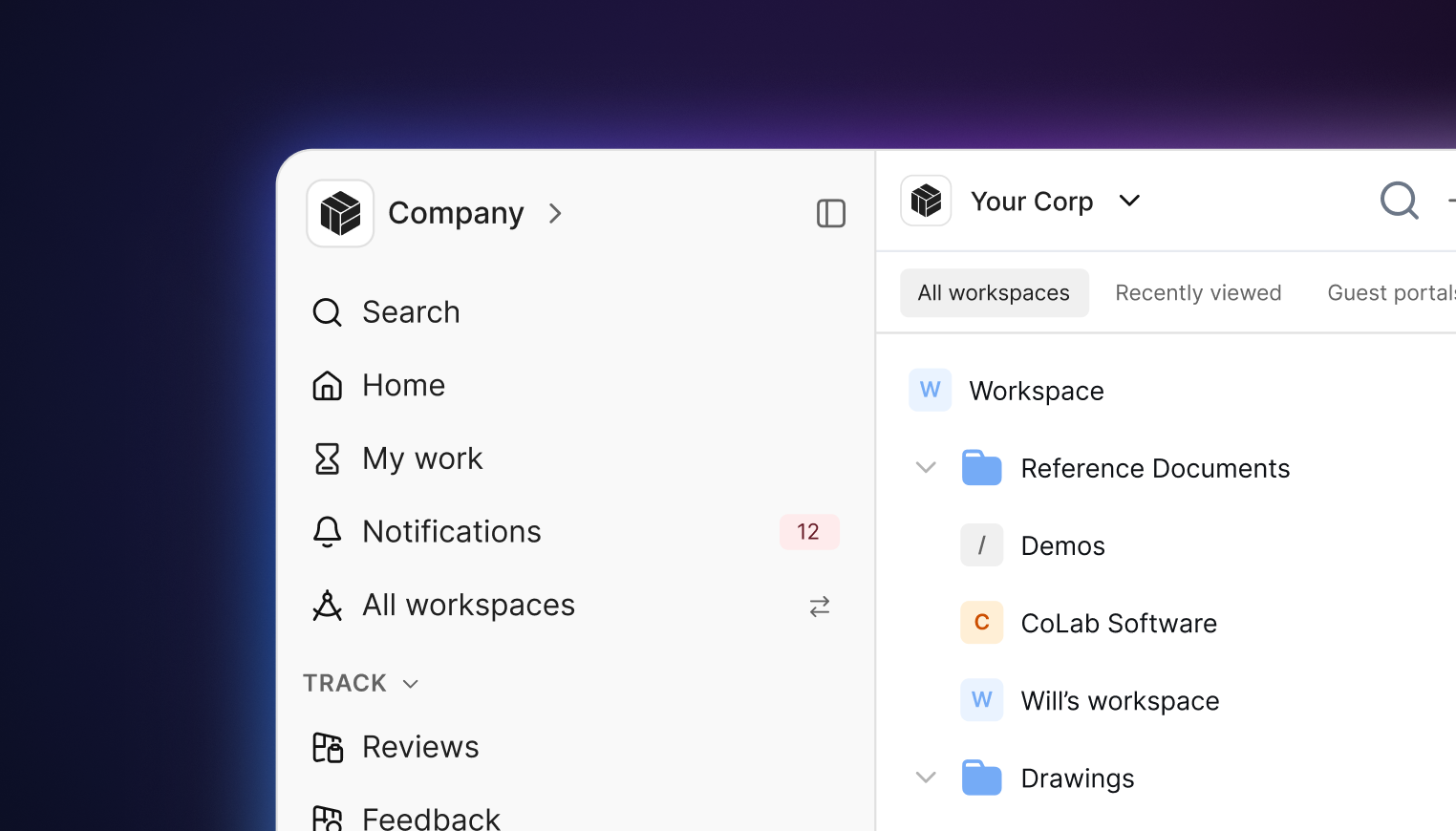
We've redesigned CoLab's navigation. The biggest change: the main navigation no longer shifts depending on where you are in the product. The global options, Search, Home, My Work, Drive, and Notifications, now stay in a fixed sidebar everywhere you go, so getting around doesn't change as you move between your company, a workspace, or a portal.
A few specific changes you'll notice:
- The sidebar stays put and you control it, pin it open, hide it, or collapse it and open it on hover.
- Track, Favourites, and Recently Viewed each have their own section in the sidebar for getting back to your work quickly. Collapse and reorder them however you like.
- Inside a workspace or portal, a secondary bar (Drive, Portals, Reviews, Feedback, Settings) now stays consistent, so the layout no longer changes from space to space.
- Breadcrumbs run the full path from company to workspace to portal to file, and you can switch workspaces or portals directly from them.
- Packages now live in Drive rather than their own menu.
We've also added Dark Mode, a dark theme that's easier on the eyes during long sessions or in low-light spaces. Turn it on from the settings menu.
Video Review

Some things are hard to capture in a model or a drawing, how a mechanism moves, how a part behaves during testing, what's happening on the line. Until now, that kind of footage lived outside CoLab, away from the design it related to and the people who needed to weigh in. Video Support brings it in.
Upload an mp4 or webm to your workspace Drive and it becomes something your team can watch and review together. Play it inline with the usual controls, play, pause, speed, fullscreen, and leave feedback tied to a specific moment, marked with a pin on the playback timeline so anyone reviewing knows exactly what you're pointing at. Those timestamps carry through to the feedback PDF export, and the original file is always available to download. Recording happens in whatever tool you already use; CoLab handles everything once the video is in.
Canvases
Not every part of design work fits into a structured review. Teams need a place to sketch out an idea, map a process, or work through a problem together before anything's formalized. Canvases are collaborative whiteboards built into CoLab for exactly that.
You create a canvas from the Drive menu and open it on its own or in split view beside a CAD file. It's a freeform surface for drawing, text, shapes, arrows, sticky notes, and images, with a style panel to adjust how everything looks. Work autosaves as you go, and you can export a canvas to PNG when you need it elsewhere.
Because canvases are collaborative, your whole team can work on the same one at once and see each other's changes live. And because they live in your workspace alongside your design files, the thinking stays connected to the work it relates to.
Commenting on a canvas, drag-and-drop of Drive assets, and version history are coming in future updates.
Export Notebooks to PDF
You can now export a Notebook as a PDF to share outside CoLab.
How it works
In Drive, open the context menu for a Notebook and select Export to PDF.
CoLab creates a PDF of the Notebook. The page orientation and content scale automatically adjust based on the width of any tables, using landscape orientation for wider tables.
More details
- Very large tables may not continue cleanly across multiple pages and could be cut off
- PDF export is available to all customers
Operator (early access)
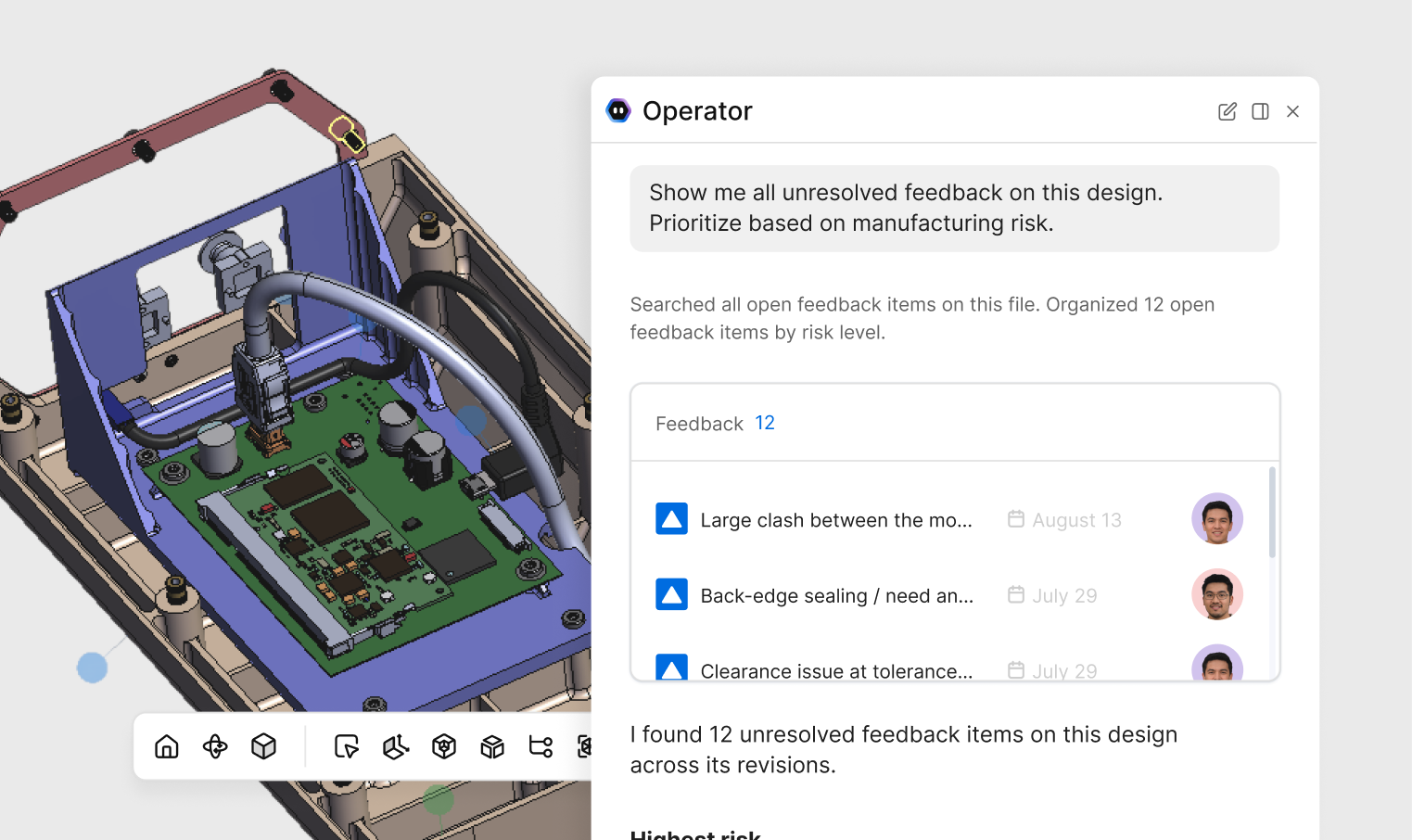
Operator is CoLab's AI interface for surfacing and acting on your engineering knowledge and design data. Operator can find what you need across your files, reviews, feedback, and standards, and perform actions inside CoLab for you.
What you can do today:
- Search. Find and synthesize information across your files, reviews, feedback, and standards, with every answer cited so you can trace where it came from.
- Analyze. Have Operator examine a drawing, reading details like tolerances, materials, and finishes, and weigh them against your project's context.
- Generate. Create new content from an Operator session, like a notebook, or visuals such as diagrams and charts inside a canvas.
Soon, Operator will also automate multi-step work inside CoLab, like creating reviews, acting on feedback, and running workflows in connected tools. 3D part analysis and more content types are also on the way.
Operator is in early access. Please reach out to request access.

Product updates
New updates and improvements to CoLab.