Product updates
New updates and improvements to CoLab.

Invitation reminders for admins
Admins will receive an email every 14 days showing how many recently invited users haven’t finished setting up their accounts. The email includes a link to review those users and resend their invitations.
How it works
- Follow the link in the email to open the Users table.
- Users who haven’t signed up are automatically selected.
- Review the selection and choose Resend Invite to send their invitations again.
You can also select users directly in the Users table and resend invitations to up to 1,000 eligible users at once.
More details
- Emails are only sent when users invited in the past 14 days haven’t signed up.
- The link selects all users who haven’t signed up, including those invited earlier.
- These emails are enabled by default. You can turn them off in your notification settings.
Review Reminders
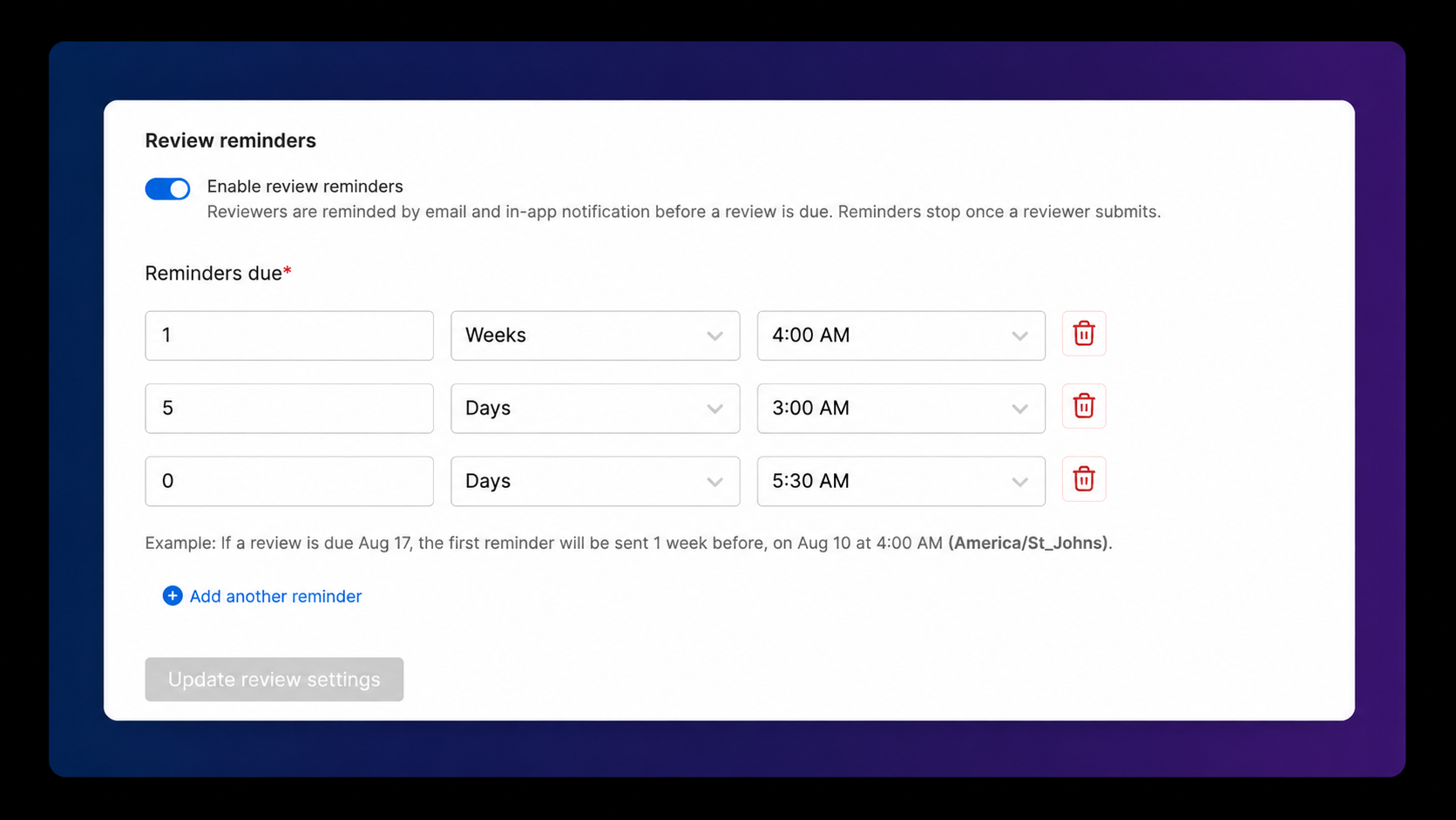
Company administrators can now configure automatic reminders for assigned reviewers based on a review’s due date. Reminders are delivered by email and through an in-app notification in CoLab.
How it works
Go to Settings > Company & Admin > General > Reviews, then turn on Enable review reminders.
For each reminder, choose how many days, weeks, or months before the due date it should be sent, then select a delivery time. Use Add another reminder to schedule additional notifications at different points in the review.
The example beneath the schedule shows the calculated delivery date, time, and time zone. Select Update review settings to save the schedule.
Once reminders are enabled, CoLab sends each scheduled notification to assigned reviewers who have not yet submitted. When a reviewer submits their review, their remaining reminders stop automatically.
More details
- Multiple reminders can be configured for the same review due date
- Enter 0 days to schedule a reminder on the due date
- Reminder settings apply across the company’s workspaces and portals
- Each reviewer stops receiving reminders after submitting their review
3-Point Section Planes
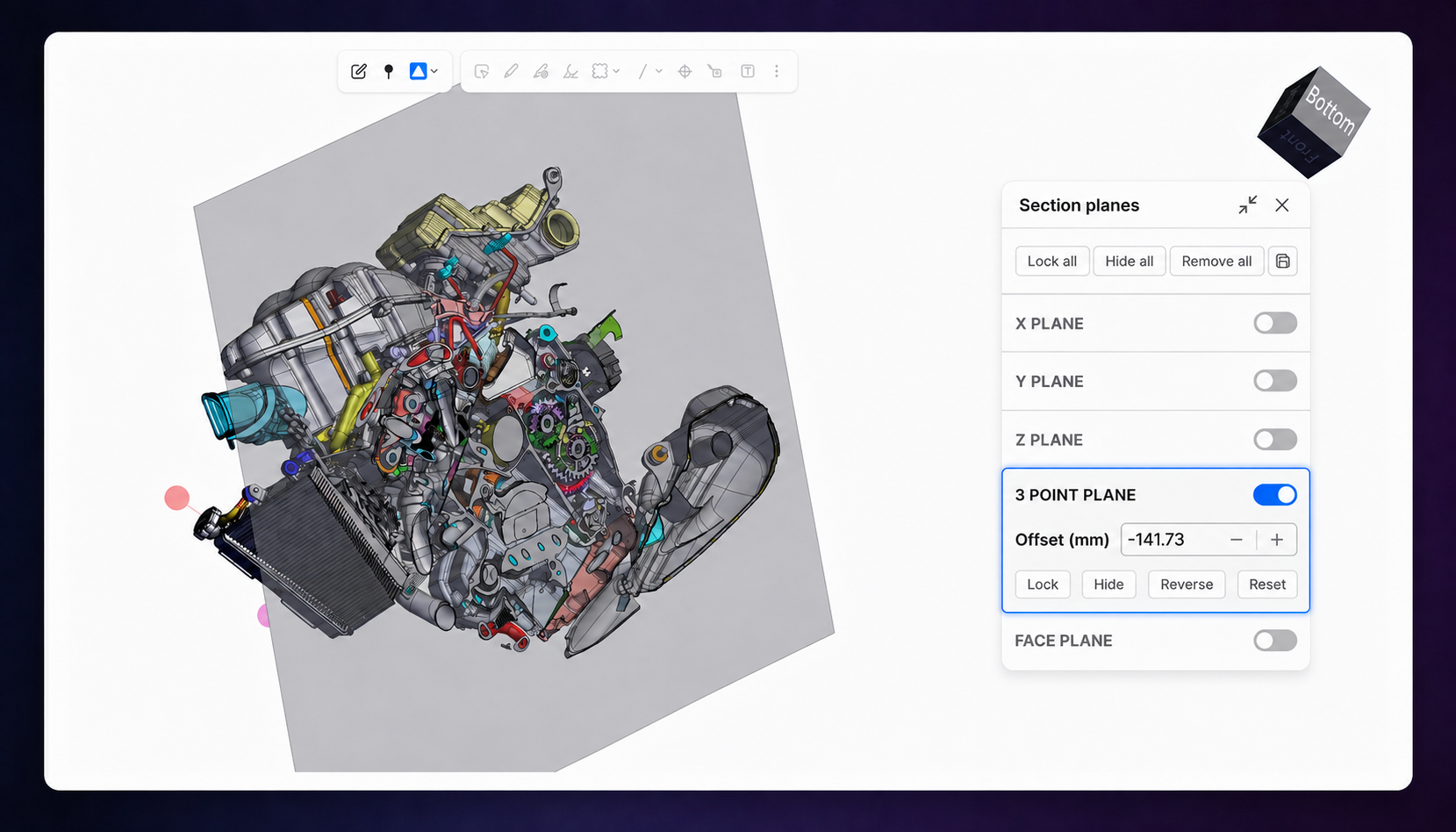
You can now define a section plane by selecting three points on a 3D model. This gives you more control over the plane’s position and angle when the standard X, Y, Z, or face planes do not align with the area you want to inspect.
How it works
Open the Section planes tool from the Analyze toolbar and turn on 3 POINT PLANE. Select three points on the model to define the position and orientation of the plane.
Once the plane is created, use the controls in the Section planes panel to:
- Adjust its offset
- Reverse its direction
- Lock or hide it
- Reset it to its original position
More details
- The existing X, Y, Z, and face plane options remain available
- 3-point planes can be managed alongside other active section planes from the same panel
Review Approval and Portal Notifications
CoLab now keeps the right people informed when a review receives every required approval and when new content is uploaded to a portal.
Review approval notifications
When every reviewer has submitted their review and selected Approve, CoLab notifies the review creator. Depending on the creator’s notification preferences, the notification can appear in CoLab, by email, or both.
Portal upload notifications
Members of a portal receive a notification when someone uploads a new file or revision. This applies to portal guests and workspace team members who belong to the portal.
Portal upload notifications use the same preference as file-upload notifications for workspaces. Users can manage their delivery preferences in their notification settings.
More details
- Approval notifications are sent only after every reviewer has submitted and approved
- Notification delivery depends on each user’s preferences
- Portal notifications cover both new files and new revisions
AutoReview: Run Titles and Cancellation
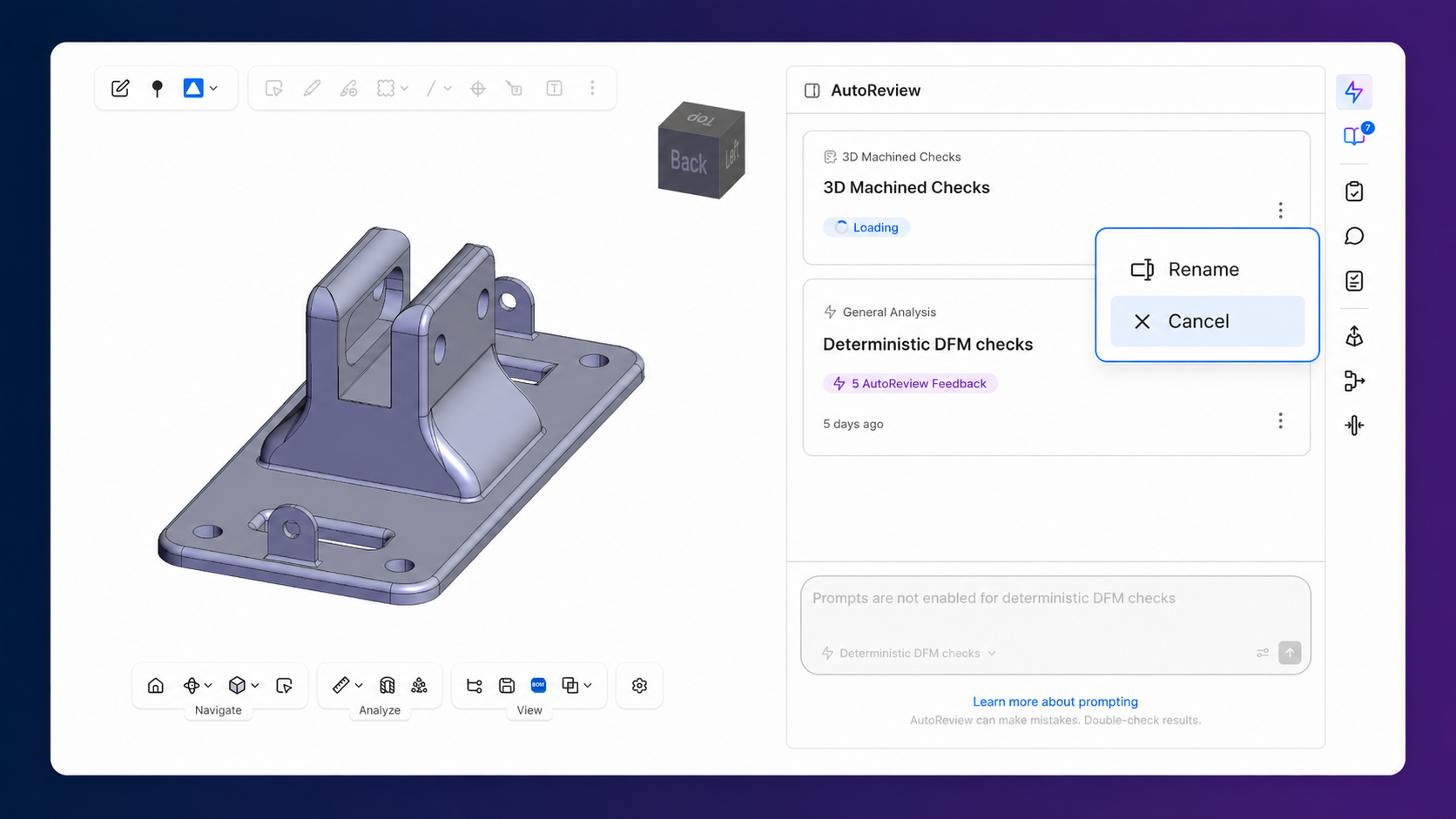
AutoReview runs now receive descriptive titles based on the prompt and checklist used to start them. You can rename a run or cancel it at any stage without losing feedback that has already been generated.
How it works
When you start an AutoReview run with a prompt, a title will be generated based on that prompt and the selected checklist. To change the title, open the run card’s three-dot menu and select Rename.
While a run is in progress, select the cancel button at the bottom of the AutoReview panel. Confirm the cancellation to stop the remaining analysis. Any feedback generated before the cancellation remains available with the run.
More details
- If you do not enter a prompt, CoLab uses General analysis or the selected checklist’s name as the run title
- You can cancel a run at any stage
- A cancelled run cannot be resumed
- After cancelling, you can start a new run with different parameters, a different prompt, or another checklist
Operator: Office File Analysis and Search Improvements
Customers with Operator early access can upload and analyse DOCX, PPTX, and XLSX files. Operator can also use all relevant results from the workspaces you can access, instead of stopping after the first 50 results.
How it works
Upload a supported Microsoft Office file directly to Operator, then ask questions about its contents. You can also open a DOCX, PPTX, or XLSX file from Drive and use Operator while the file is open in the viewer.
When you search company knowledge, Operator retrieves relevant results from the workspaces you belong to. It can count matching records or analyse results within a specified date range.
The results table displays up to 200 items. Operator can still use additional relevant results when generating its response.
More details
- Files you can upload directly to Operator include PDF, DOCX, PPTX, XLSX, GIF, JPEG, and PNG
- Searches only include content from workspaces you belong to
- This release includes fixes to file-property retrieval and BOM search
- Operator remains in early access; contact your CoLab representative to request access
3D AutoReview: Deterministic DFM Checks (early access)
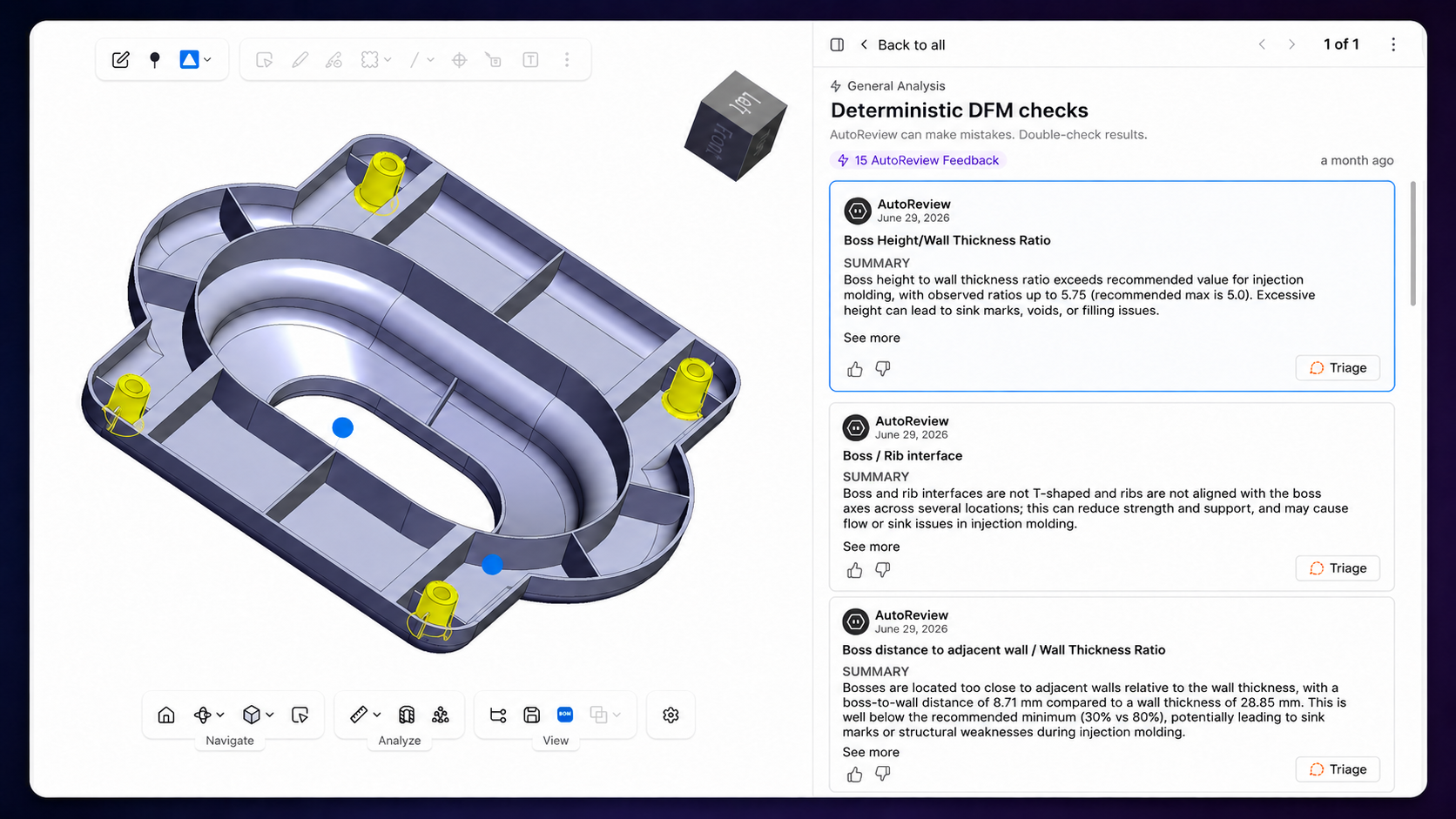
Customers participating in the 3D AutoReview early-access program can now run deterministic DFM checks for sheet metal and injection molded parts.
How it works
With a 3D part file and AutoReview open, select the Deterministic DFM checks dropdown menu and select the relevant option.
CoLab displays the deterministic checks available for that method and automatically selects its default threshold profile. You can view the profile’s values or choose a different profile before starting the run.
Company administrators can create custom threshold profiles for each supported manufacturing method. Profile values begin with CoLab-defined defaults and can be adjusted using metric or imperial units. Administrators can also choose which profile is selected by default.
You can view the parameters used for a completed run. Before running AutoReview again, you can change the manufacturing method, material, or threshold profile.
More details
- Sheet metal and injection moulding checks are available to all users with 3D AutoReview access
- A General Analysis run without a prompt also triggers the available deterministic checks
- AutoReview can still run on other manufacturing methods, but deterministic checks are not available for those methods; CoLab displays a notice explaining the current level of support
- If an administrator has not selected a custom default threshold profile, CoLab uses its standard threshold values
- 3D AutoReview is available through a controlled early-access program; contact your CoLab representative to ask about access

Product updates
New updates and improvements to CoLab.