
Product updates
New updates and improvements to CoLab.

2D Pins
You can now drop feedback pins directly on 2D files and drawings without creating a markup first.
This gives reviewers a faster way to leave location-specific comments when they have a quick question, callout, or issue to flag. Instead of choosing a markup tool, drawing an annotation, and then typing a comment, users can place a pin on the drawing and start writing.
How it works
When viewing a 2D file or drawing, users can drop a feedback pin anywhere on the file. After placing the pin, they can type their comment and add the usual feedback details, including feedback type, assignee, and text-to-speech options.
Pins can also be moved before the feedback is submitted, making it easier to place the comment exactly where it belongs.
Once created, 2D pins show more detail as users interact with them:
- Static: shows the pin location
- Hover: opens a compact feedback preview
- Click: opens the full feedback card
This update is useful for quick comments that need drawing context but do not require markup. It keeps feedback tied to the right location while reducing the steps needed to capture it.
Measurements Enhancements
You can now take dimensional measurements directly on 3D models in CoLab including edge lengths, distances, radii, diameters, angles, and coordinates, without switching to a specific measurement type first.
How it works
Select the measurement tool from the bottom tool bar (default), Measure from the measurement drop-up in the bottom toolbar, or press M on the keyboard. The cursor changes to a ruler icon to indicate the tool is active.
Hover over any part of the model to highlight it. Click to select. The tool detects what you've selected and shows the relevant measurements automatically in a context menu on the viewer:
- Select a straight edge → edge length
- Select a circular feature → radius and diameter
- Select two faces → minimum distance between them
- Select a curved or irregular edge → edge length along the curve
For point-to-point distance and angle measurements, hold Shift and click to place two or three points. Release Shift to confirm and display the result.
You can switch between available measurement types from the context menu after selecting geometry — no need to reselect.
Measurement labels are draggable. Reposition them anywhere in the viewer if they're covering geometry. Labels stay correctly oriented when you rotate or move the model.
Feedback with measurements
Measurements are saved with feedback. When a reviewer opens feedback that includes a measurement, the measurement is restored in the viewer in the same state it was in when the feedback was created.
Active measurements also appear in the Model Browser under a dedicated Measurements tab.
More details
- The legacy measurement tools (edge, radius, diameter, angle, distance, point-to-point) remain available from the measurement drop-up for users who prefer them
- Measuring features that look like closed circles but are constructed from multiple rounded segments may not always return the expected result — full arc detection for partial circles is ongoing
Create Notebooks in Drive
Notebooks can now be created directly in Drive — independent of any review — to capture pre-reads, requirements, decision logs, and the rest of the written context around a design.
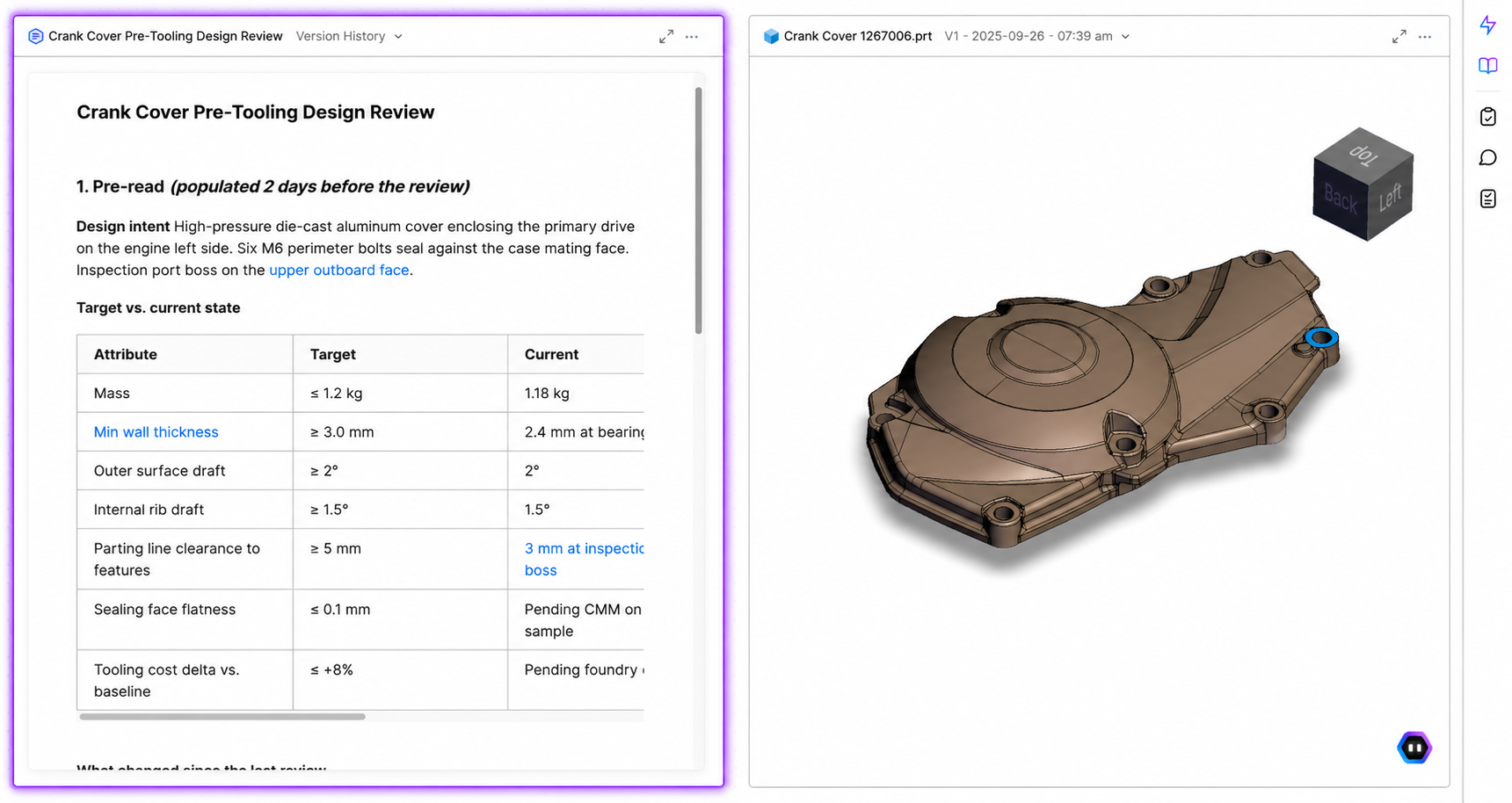
Review Notebooks have been in CoLab since June 2024 as the main writing surface inside of reviews. What's new is that Notebooks can now exist as their own asset in Drive, independent of any review. Every review still has one attached by default — that in-review version is now called Review Notes.
What you can use Notebooks for
- Pre-reads. Write the intent, scope, and constraints of a review in a Notebook and attach it. Reviewers open it in split view next to the model and arrive with context.
- Requirements documents. Keep the requirements driving a design next to the CAD it governs, instead of in a SharePoint folder a reviewer has to go find.
- Decision logs. Record tradeoffs, rationale, and outcomes attached to the work, so the decision trail is available for onboarding, audits, or follow-on programs.
- Supplier context. Share a Notebook to a Portal so suppliers see the same context internal teams do, without a separate email or attachment.
Working with Notebooks
A Notebook is created from the Drive menu or workspace homepage, the same way as any other Drive asset. It can be opened on its own or in split view beside a CAD file or drawing, attached to Reviews, and shared to Portals. Notebooks shared to two or more Portals are automatically read-only for portal guests, to prevent cross-supplier exposure. Otherwise, Notebooks behave like any other Drive asset — they can be organized, favourited, shared, and linked.
Coming in future updates:
- Export to PDF
- Comments or feedback inside Notebooks
- Full-text search across Notebook body content (titles are searchable)
Review Updates: Review Keys + Reopen Reviews
We're releasing two improvements to reviews in CoLab.
Reopen Reviews
Closed reviews can now be reopened.
Previously, if a design changed after a review was closed — or if feedback was missed — the only option was to start a new review from scratch, losing the thread of the original. Reviews can now be reopened and continued, keeping all existing feedback, comments, and history in one place.
Review Keys
Reviews in CoLab now have a unique identifier called a Review Key. This makes it possible to consistently reference a specific review outside of CoLab — in reports, other tools, or conversations — without ambiguity.
The key is visible in the review info panel and appears as a column in the reviews table. It is also included in both review history export formats, and exposed as a field on the review object in the Enterprise API.
- Review keys are assigned automatically — no action is required
- Keys have been back-populated to all existing reviews
- For teams using the Enterprise API, the key can be used to pull or reference specific reviews in external systems or reporting tools
CoLab integration for Creo
.png)
You can now upload files from PTC Creo Parametric directly to CoLab without leaving your Creo session.
The CoLab plugin for Creo adds a button to the Creo ribbon. With the plugin installed, you can sign in to CoLab from within Creo and upload your active model to any CoLab workspace you have access to.
Accepted file formats
- Part files (.prt)
- Assemblies (.asm), including all component parts
- Drawings (.drw) converted to PDF on upload
- Family Table parts and assemblies, including assemblies that contain Family Table parts and nested Family Tables
Windchill users
If your files are checked out from a Windchill PDMLink or ProjectLink workspace and open in Creo, the plugin will upload them to CoLab with the correct revision and iteration metadata preserved.
Supported versions
Creo 8.0.1 and above
Notes
- Files must be saved in Creo before uploading. If your file has unsaved changes, you will be prompted to save first.
- Suppressed components in an assembly are skipped on upload without notification in this release.
- Assemblies that contain non-Creo files (e.g., imported foreign geometry as standalone components) are not supported in this release.
- Creo Design Exploration Extension (DEX) is not supported.
- This plugin requires admin installation. Contact your CoLab admin to get set up.
Learn more here.
Custom Checklists in AutoReview
You can now run AutoReview against your company's own checklist templates, giving you more control over the checks AutoReview performs.
How it works
There are two steps. One for admins, one for all users.
Admins: Go to Company Settings → General → Checklist Templates. Each template now has an "Available in AutoReview" toggle.
Enabling a template runs a safety check on the content before it becomes available. Templates that pass will appear for all users across all workspaces. Templates that fail the check will be marked incompatible and won't appear in AutoReview runs.
All users: When starting a Peer Checker run, open the checklist selector. Your company's enabled templates appear under Your Checklists, separate from CoLab's built-in options. Select one and run as normal.
What to expect from results
AutoReview uses your checklist as input to guide its analysis — it passes the checklist name, items, and descriptions to its underlying agents. However, results are still limited by the check types those agents support. If your checklist includes items outside current agent coverage, AutoReview may not surface findings for those items. This scope will expand as new agents are added.
If you're getting fewer results than expected, this is the most likely reason. Your CSM can help you identify which checklist items are most likely to produce results with the current agent set.
More details
- Only company admins can enable or disable templates for AutoReview
- Enabled templates are available across all workspaces
- You can still use CoLab's built-in checklists at any time
For more informaton, read our Knowledge Base article.
2D AutoReview: Expanded Agent Coverage
AutoReview for 2D drawings now runs a broader set of specialized agents, significantly expanding the range of technical feedback it can generate.
Previously, 2D AutoReview used a single generalist agent and primarily surfaced feedback on missing dimensions, material inconsistencies, and text typos. AutoReview now dynamically selects from a factory of specialized agents based on the content of the drawing being reviewed — covering GD&T, tolerancing, dimensioning, fasteners, view integrity, BOM consistency, and more.
Custom checklists and user input prompts work alongside the agent factory — they direct which agents are prioritized and what context they operate with. The active agents for each run are visible in the processing panel.
If you've run AutoReview on a drawing previously, you will likely see new findings on the same file. This reflects expanded coverage, not a change in the design. The agent factory will continue to expand over time.

Product updates
New updates and improvements to CoLab.