
Product updates
New updates and improvements to CoLab.

Model Merging
You can now merge multiple 3D files from different CAD systems directly in CoLab’s viewer. This lets you bring separate parts or assemblies into a single view and review them together, without converting file formats or switching tools.
How it works
- With any 3D file open, select Merge models from the right-side menu
- Select Add File and choose which file from Drive to merge with the currently open file
- Use slide and rotate controls to position models, either by dragging handles or entering exact values
- You can choose to save the merged model as a new file or as a new revision.
- Saved merged models appear in Drive like other 3D assets: they can be interacted with, reviewed, or downloaded.
This gives you a straightforward way to bring models together in context, check fit across different CAD sources, and review them as a single file.
Multi-File Reviews and Review Panel Updates
You can now include multiple files in a single review. This keeps all related design context together in one place and simplifies how reviews are created and managed.
Review Creation
Multi-file reviews can be started from several places across CoLab:
- Drive: Multi-select files → Create Review (+)
- Drive: + → Upload file → Upload & Request Review
- Workspace or Portal Home: Create Review button
- Workspace or Portal Reviews Table: Create Review (+)
During setup, you’ll now see a step where you can choose which files to include:
- Upload new files from your device, or
- Select existing files from the workspace
If you start from Drive using multi-select, this step is skipped since your files are already chosen. You can also reorder the files before finalizing.
Limitations
- Multi-file reviews cannot currently be created from the Request review button when a file is open.
- When selecting files, CoLab will prevent you from including files that are already under review or specific file revisions instead of parent files. You’ll see a tooltip explaining why the file can’t be added.
Review Panel: Files Tab
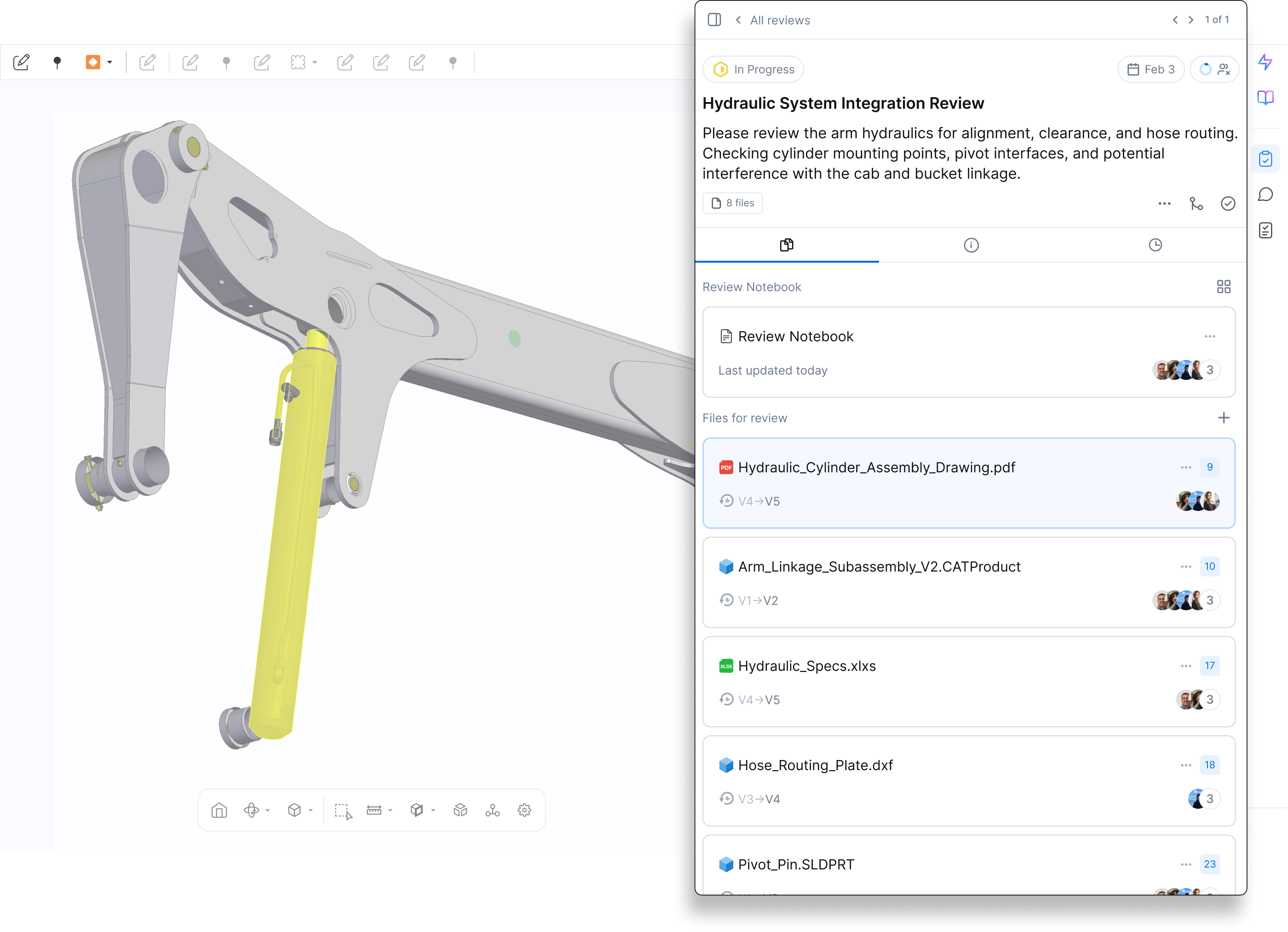
A new Files tab has been added to the review panel, showing both the Review Notebook and Files for Review.
What’s new:
- Toggle between card view and list view
- See file names, type icons, revision range, unresolved feedback count, and viewer activity
- “Unseen by you” and “Recent Views” indicators help track engagement
- File-level options now include:
- Open in new tab or split view
- Add to favourites
- Upload new revision (moved from review header)
- Remove file from review (adds activity note)
- Copy file link
You can also add more files to an existing review using the + Add Files for Review button in the Files tab. Adding files triggers an activity note and notifies reviewers.
AutoReview: Unread Badge
AutoReview now shows a badge when results are available that you haven't seen yet.
When AutoReview completes a run — whether you triggered it or another user did — a badge appears on the AutoReview icon for anyone who hasn't opened the results. The badge clears once you open the AutoReview panel.
Previously, the only indication that a run had completed was a success toast at the moment it finished. If you weren't in the app, or if someone else triggered the run, there was no way to know results were waiting without manually clicking into each file to check.
Files with AutoReview runs that completed before this feature launched will show a badge on first view — this is expected and will clear once the panel is opened. The badge appears for both 2D and 3D AutoReview results.
Custom Feedback Views
We’ve introduced the ability to create and save custom views of the feedback table at both the company and workspace levels, giving you greater control over how feedback is organized, filtered, and reviewed.
What’s New
Global Views:
Company Admins can now create and manage global feedback views that are visible across all workspaces and portals.
- Global views can only be created and edited at the company level.
- Admins are notified before publishing a global view to all users.
Custom Feedback Views in Workspaces:
- Create custom views directly inside a workspace or portal to organize and filter feedback for that specific context.
- Workspace and Portal Admins can manage permissions for creating, editing, and deleting custom views.
- All previously shared company-level views have been converted to company views.
Column Order and Visibility:
- When saving or updating a custom view, CoLab stores your chosen layout.
- Any change to filters, columns, or visibility prompts a “Save Changes” option to keep the view up to date.
AutoReview Instructions
Admins can now write persistent instructions that apply to every AutoReview run across the company — without requiring individual users to provide context each time.
Go to Company Settings → AutoReview → Instructions and enter plain-text guidance for AutoReview to follow. Instructions are applied automatically on all future runs. They're best used for context that applies consistently across all files — for example, background on your product line or manufacturing environment, feedback categories AutoReview should deprioritize, or preferred terminology.
This reduces noise from feedback that isn't applicable to your designs, and makes results more relevant from the first run without any extra steps from users. Instructions work alongside custom checklists and user input prompts — they don't replace either.
Also shipping today: you can now re-trigger a general analysis run from the + New menu in the AutoReview panel without re-uploading the file. Previously this required uploading a new revision.
Draft Analysis
.png)
You can now run draft analysis on 3D files in CoLab. This makes it easier to confirm whether molded or casted parts have the draft angles needed for manufacturing, without leaving your review in CoLab.
Here’s how it works:
- Open the model you'd like to perform a draft analysis on
- Select Draft Analysis from the right toolbar
- Set the pull direction and draft angle thresholds
- Click Run analysis
- Draft analysis iwill be run on the entire model, regardless of which components are shown or hidden.
- Surfaces will be color-coded so areas with insufficient draft stand out
- Pin feedback to the analyzed model to save the analysis for later reference
This gives you a quick way to check draft during a review, capture the results in context, and decide if more detailed CAD analysis is required.
AutoReview: Improved Feedback Reinforcement
When AutoReview generates feedback that isn't accurate or relevant, you can now explain why — not just flag it as unhelpful.
Selecting the thumbs-down on any AutoReview result now opens an expanded panel where you can classify the issue:
- Not relevant — the feedback is valid but doesn't apply to this design or file
- Missed detail — a detail in the file was overlooked that would have changed or eliminated this feedback
- Incorrect — the feedback contains wrong reasoning or an inaccurate recommendation
- Other — for cases that don't fit the above
You can also add a short text explanation for additional context.
CoLab uses this data to identify quality trends and prioritize improvements to AutoReview. A classified signal is more useful than an unclassified thumbs-down — it tells the team not just that something was wrong, but what kind of wrong.
Note: reinforcement does not currently retrain AutoReview in real time. It informs the team's quality analysis and future model improvements.

Product updates
New updates and improvements to CoLab.