
Product updates
New updates and improvements to CoLab.

Import design feedback via CSV + New portal guest review permissions
Import feedback via CSV
You can now upload a CSV file to bring existing design feedback into CoLab and attach it to a specific file.
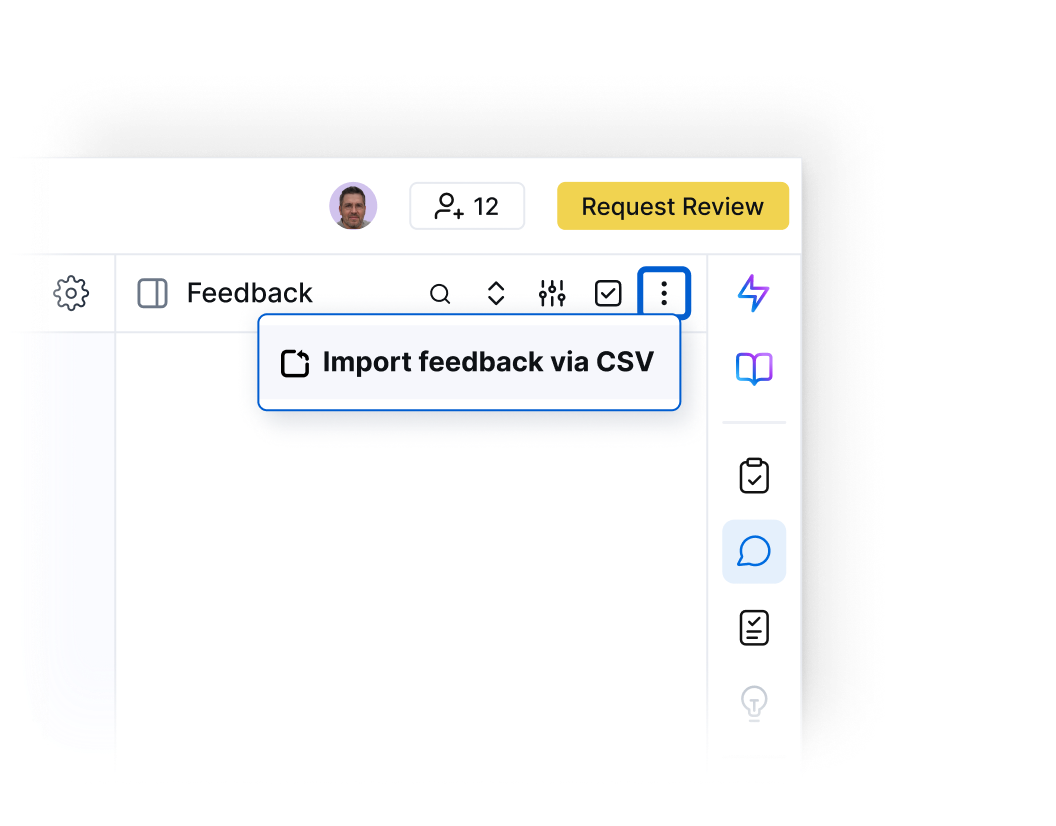
To import feedback:
- Open the file the feedback should be associated with
- Select Import feedback via CSV from the Feedback menu
- Choose a feedback type for the imported feedback items
- Upload your CSV file
- Add feedback pins and relevant markups
Each row in the CSV becomes a feedback item on that design.
Once imported, the feedback behaves like feedback created directly in CoLab. It can be reviewed, discussed, and tracked in the same way.
Learn more about importing feedback from outside of CoLab here.
New Portal Guest permissions for review creation and management
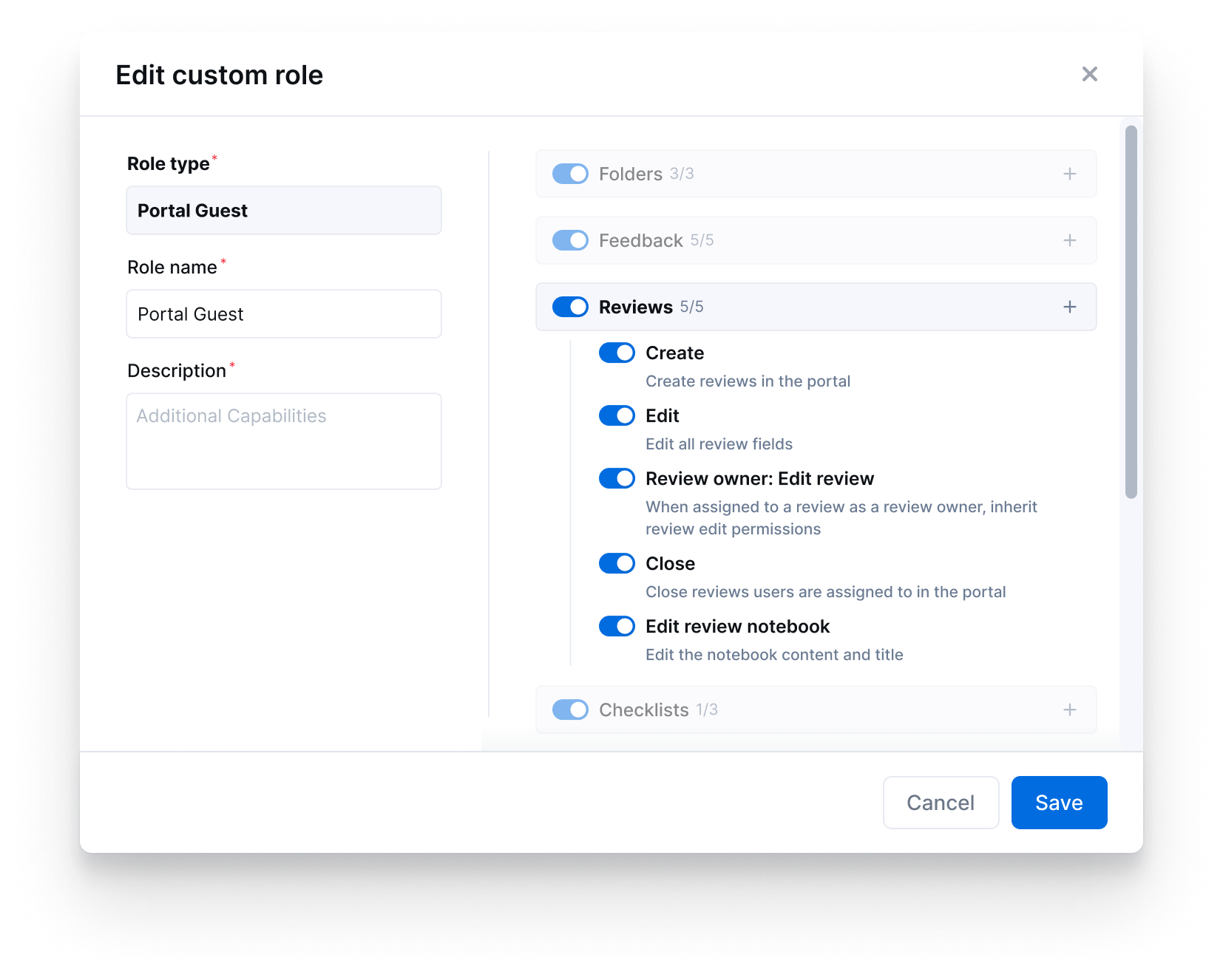
Admins can grant portal guests permissions that let them:
- Create reviews on files they upload
- Edit review details
- Act as review owners
- Close reviews
- Export review history
While these new options let external collaborators initiate and manage reviews, admins maintain full control what portal guests can and cannot do.
Enterprise API
CoLab now offers a versioned REST API that lets you access and manage CoLab data and actions programmatically. You can use the API to perform bulk actions in the application, and pull data from CoLab into other tools.
Admins generate API keys in Admin Settings > API Key Management and use those keys to authenticate requests to the Enterprise API. Once authenticated, you can:
- Add, update, or remove users from workspaces
- Create and manage workspaces
- Upload, update, and delete files in bulk
- Retrieve reviews and feedback for use in BI tools, databases, or IT workflows
More information on generating API keys can be found here.
API actions follow the same permission rules as the CoLab UI, and changes appear immediately across the product.
For more information, see our knowledge base or contact your Customer Success Manager.
Wall Thickness Analysis
.png)
You can now run wall thickness analysis directly on 3D models in CoLab.
This allows you to evaluate material thickness during a review without leaving CoLab or reopening CAD. Thickness variation is displayed on the model using a color map, making thin sections, thick transitions, and other potential manufacturability concerns easy to spot.
- Thickness is calculated across BREP geometry and visualized directly on the model
- The color scale reflects min/max thickness values and can be adjusted to focus on specific ranges
- A probe tool lets you inspect exact thickness values at any point on the model
- Feedback created during analysis preserves the thickness view and scale, so the context is retained when revisiting the issue later
This capability supports decisions around whether geometry is ready to move forward, what needs adjustment, and what should be flagged ahead of tooling or supplier review.
Wall Thickness Analysis is available on Pro and Scale plans.
Read more in our knowledge base article.
AutoReview: User Input Prompts
You can now provide AutoReview with context about a design before it runs — so the analysis is informed by information that isn't captured in the file itself.
When triggering an AutoReview run, an optional input field lets you describe the design in plain text. AutoReview uses this context when generating feedback across both general runs and checklist-based runs. Useful context to include:
- Material or material grade (e.g., PA66 with 30% glass fill)
- Intended fabrication method (e.g., CNC machining, injection molding, sheet metal)
- Application details (e.g., operating environment, load conditions)
- Specific instructions for what AutoReview should evaluate
The prompt is saved in the run header so it's visible to anyone reviewing the results later. Leaving the field blank runs AutoReview as normal.
Note: AutoReview no longer runs general analysis automatically on file upload by default. This can be re-enabled in Company Settings → AutoReview.
AutoReview Processing Stages
AutoReview now shows what it's doing while it processes, so you can follow along rather than wait for results to appear.
When you trigger a run, a processing panel shows the active stages in sequence — which agents are running, what they're analyzing, and where the run stands overall. Stages update in real time as the run progresses.
This replaces a blank waiting state that gave no indication of progress. The intent is to make AutoReview's process legible enough that the results make sense when they arrive — and to give users more confidence in what the AI is doing and why.
Processing stages are shown during active runs only — completed runs from before this launch won't show them. The set of visible stages will expand as more agents are added.
Model Merging
You can now merge multiple 3D files from different CAD systems directly in CoLab’s viewer. This lets you bring separate parts or assemblies into a single view and review them together, without converting file formats or switching tools.
How it works
- With any 3D file open, select Merge models from the right-side menu
- Select Add File and choose which file from Drive to merge with the currently open file
- Use slide and rotate controls to position models, either by dragging handles or entering exact values
- You can choose to save the merged model as a new file or as a new revision.
- Saved merged models appear in Drive like other 3D assets: they can be interacted with, reviewed, or downloaded.
This gives you a straightforward way to bring models together in context, check fit across different CAD sources, and review them as a single file.
Multi-File Reviews and Review Panel Updates
You can now include multiple files in a single review. This keeps all related design context together in one place and simplifies how reviews are created and managed.
Review Creation
Multi-file reviews can be started from several places across CoLab:
- Drive: Multi-select files → Create Review (+)
- Drive: + → Upload file → Upload & Request Review
- Workspace or Portal Home: Create Review button
- Workspace or Portal Reviews Table: Create Review (+)
During setup, you’ll now see a step where you can choose which files to include:
- Upload new files from your device, or
- Select existing files from the workspace
If you start from Drive using multi-select, this step is skipped since your files are already chosen. You can also reorder the files before finalizing.
Limitations
- Multi-file reviews cannot currently be created from the Request review button when a file is open.
- When selecting files, CoLab will prevent you from including files that are already under review or specific file revisions instead of parent files. You’ll see a tooltip explaining why the file can’t be added.
Review Panel: Files Tab
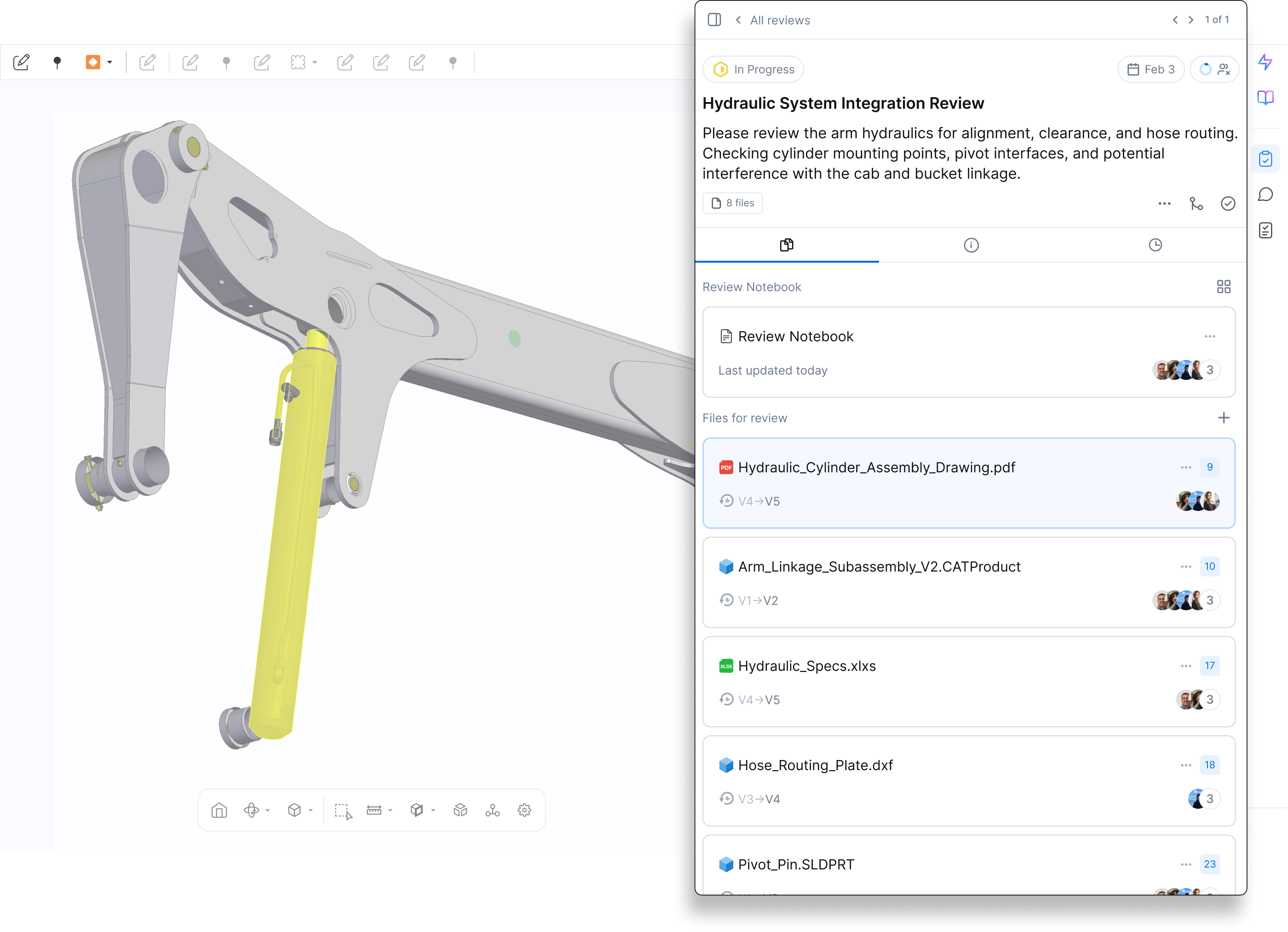
A new Files tab has been added to the review panel, showing both the Review Notebook and Files for Review.
What’s new:
- Toggle between card view and list view
- See file names, type icons, revision range, unresolved feedback count, and viewer activity
- “Unseen by you” and “Recent Views” indicators help track engagement
- File-level options now include:
- Open in new tab or split view
- Add to favourites
- Upload new revision (moved from review header)
- Remove file from review (adds activity note)
- Copy file link
You can also add more files to an existing review using the + Add Files for Review button in the Files tab. Adding files triggers an activity note and notifies reviewers.

Product updates
New updates and improvements to CoLab.