
Product updates
New updates and improvements to CoLab.

Draft Analysis
.png)
You can now run draft analysis on 3D files in CoLab. This makes it easier to confirm whether molded or casted parts have the draft angles needed for manufacturing, without leaving your review in CoLab.
Here’s how it works:
- Open the model you'd like to perform a draft analysis on
- Select Draft Analysis from the right toolbar
- Set the pull direction and draft angle thresholds
- Click Run analysis
- Draft analysis iwill be run on the entire model, regardless of which components are shown or hidden.
- Surfaces will be color-coded so areas with insufficient draft stand out
- Pin feedback to the analyzed model to save the analysis for later reference
This gives you a quick way to check draft during a review, capture the results in context, and decide if more detailed CAD analysis is required.
AutoReview: Improved Feedback Reinforcement
When AutoReview generates feedback that isn't accurate or relevant, you can now explain why — not just flag it as unhelpful.
Selecting the thumbs-down on any AutoReview result now opens an expanded panel where you can classify the issue:
- Not relevant — the feedback is valid but doesn't apply to this design or file
- Missed detail — a detail in the file was overlooked that would have changed or eliminated this feedback
- Incorrect — the feedback contains wrong reasoning or an inaccurate recommendation
- Other — for cases that don't fit the above
You can also add a short text explanation for additional context.
CoLab uses this data to identify quality trends and prioritize improvements to AutoReview. A classified signal is more useful than an unclassified thumbs-down — it tells the team not just that something was wrong, but what kind of wrong.
Note: reinforcement does not currently retrain AutoReview in real time. It informs the team's quality analysis and future model improvements.
AutoReview Reliability Improvements
AutoReview can now run on files that previously showed an AutoReview unavailable state. Files uploaded before CoLab's current CAD metadata system may be missing information AutoReview requires. Rather than failing permanently, AutoReview now re-processes the file's metadata when you re-trigger a run — so older files that were blocked are now accessible.
CAD conversion and metadata processing have also been streamlined, reducing processing time for all files. The experience for files with complete metadata is unchanged.
If you've seen AutoReview unavailable on a file, trigger a new run to see if it resolves. Further improvements to AutoReview run speed are in progress.
Integrations for Microsoft Teams and Slack
You can now receive CoLab notifications directly in Microsoft Teams or Slack, so you don’t miss review assignments, mentions, or workspace activity while you’re in your day-to-day chats.
What’s included
- Mentions and direct assignments
- Review requests and ownership changes
- Workspace or portal invites
- Join alerts for workspaces you admin
All messages follow your existing in-app notification preferences, and links open the exact file, feedback, review, workspace, or portal in CoLab.
How to set it up
Admin step (once per integration)
- Go to Settings & Admin → Integrations.
- Select MS Teams or Slack.
- Toggle Allow users to connect to [MS Teams or Slack].
User steps
- In CoLab, go to Account Settings → Apps.
- Choose Microsoft Teams or Slack and click Connect.
- Finish configuration in Microsoft Teams or Slack when prompted.
Learn more: Check the Integrations section of our Knowledge Base to see how to connect Teams/Slack and learn about other available integrations.
Feedback Activity Tab + Locking Feedback From Editing
You can now view a full activity history for every feedback item in CoLab, making it easier to see what changed, when it changed, and who changed it.
Feedback Activity Tab
.png)
Every feedback item now has an Activity tab that shows a running log of:
- Status changes
- Updates to title, description, tags, priority, and assignee
- Markup changes and file updates
- Who made each change and when
- Feedback history is tracked for both internal and portal feedback
Closed feedback is now read-only
.png)
When a feedback item is marked as closed, it becomes locked. That means no further edits can be made unless someone intentionally reopens the feedback first. This protects the integrity of your design decisions by ensuring that closed items remain a permanent record of what was agreed upon—reducing confusion
These updates help teams maintain a clear, accurate record of every piece of feedback.
Improved Workspace Visibility
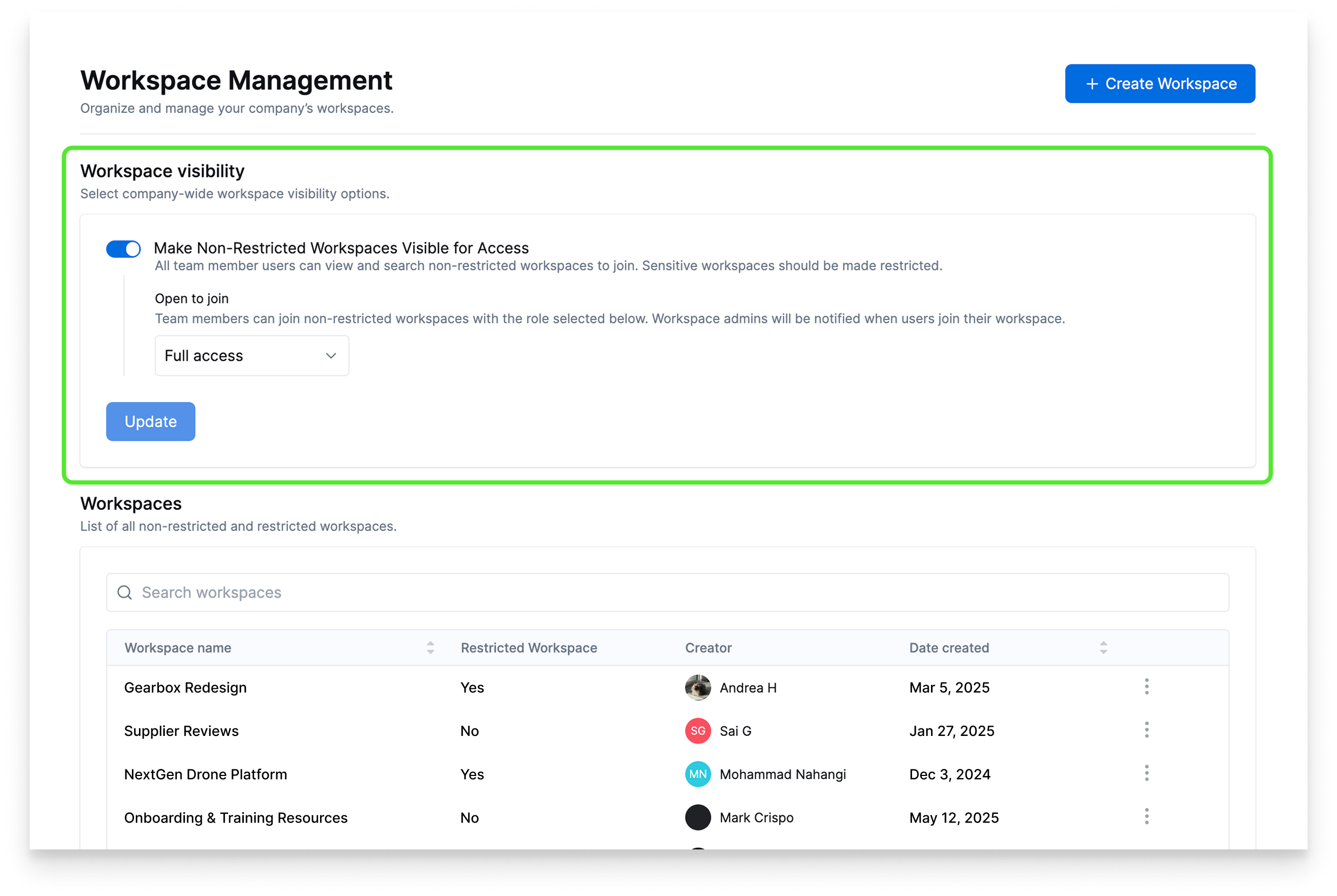
Until now, team members couldn’t see all the workspaces in their company. This led to difficulty gaining access to certain workspaces.
Company admins can now make all non-restricted workspaces visible and joinable to other users on the team. This means team members won’t have to ask an admin to share a link or send an invite to join a workspace—they can find and join it themselves.
How to enable it
Admins can turn this setting on from the Workspace Management section of the admin panel:
- Look for the option called "Make Non-Restricted Workspaces Visible for Access."
- Choose the minimum role required for users to see available workspaces.
- Click Update to apply.
Once enabled, any workspace not marked as restricted will become visible and available for join requests by users with the required role or higher.
What stays private
Workspaces containing confidential or unreleased information can still be marked as restricted. These will remain hidden from non-admin users—even with the new setting turned on.
How users can join workspaces
Once the setting is active, users can:
- Scroll through available workspaces on the Home page
- Search by name using the sidebar search from anywhere in CoLab
- Join with one click when they find the right workspace
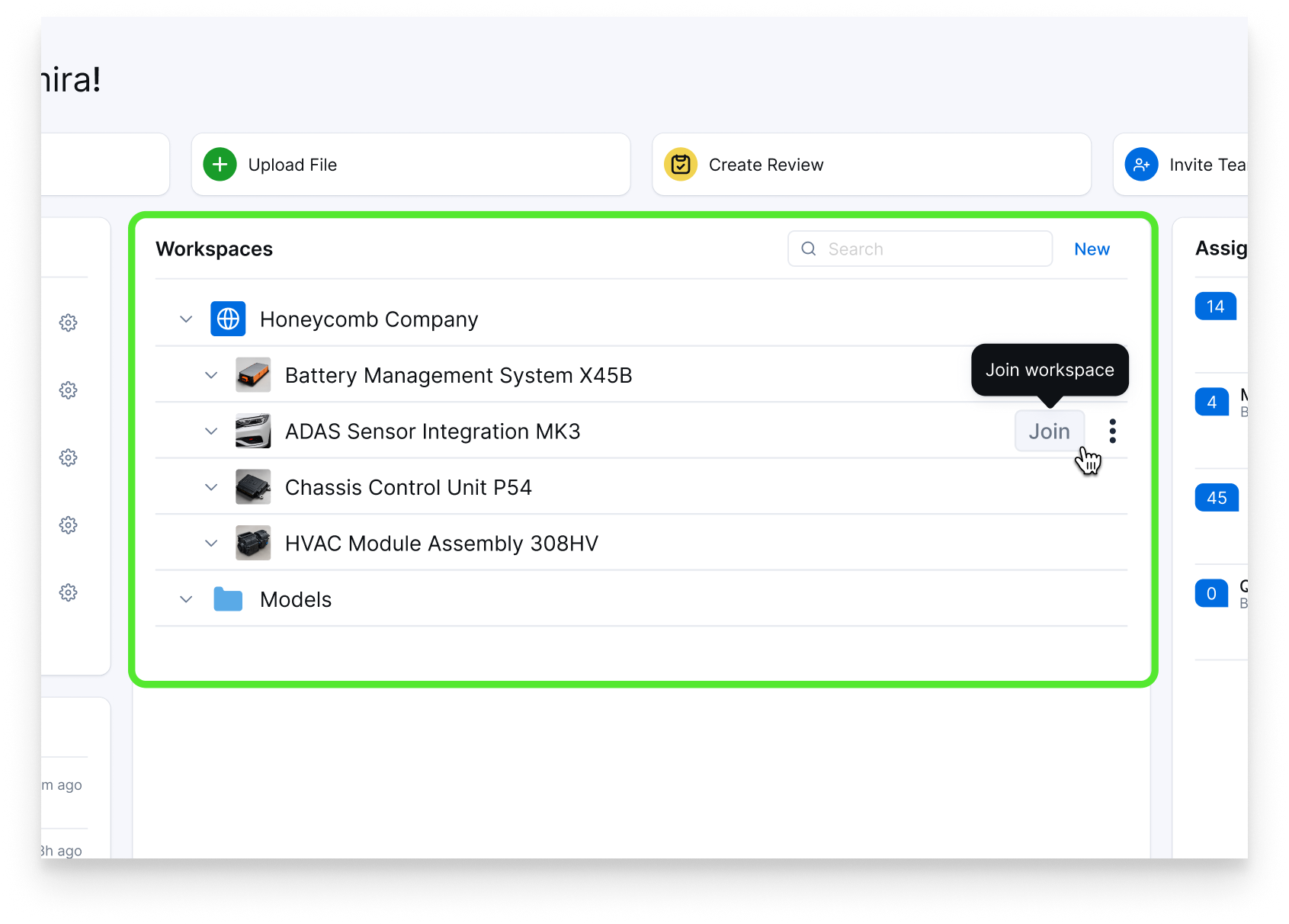
Need help configuring workspace visibility? Visit the Help Center or reach out to your CoLab contact.
Export Feedback as a PDF or CSV Report
You can now export feedback from any file in CoLab—whether as a PDF or CSV.
What’s included in a PDF export
PDF reports can be customized to include:
- A summary table of all feedback items
- Full details for each comment—including status, tags, and custom fields
- Optional sections like screenshots, attachments, and discussion history
- Direct links back to the feedback in CoLab
Customize your export
Before exporting, you can:
- Filter feedback by type, status, assignee, reviewer, priority, and more
- Choose which file revisions to include (multi-revision exports are organized into a ZIP)
To export, right-click any file in Drive and select Export File Feedback. Then choose your format (PDF or CSV), apply any filters, and configure your report content.
Learn more in this knowledge base article.

Product updates
New updates and improvements to CoLab.