
Product updates
New updates and improvements to CoLab.

AutoReview: User Input Prompts
You can now provide AutoReview with context about a design before it runs — so the analysis is informed by information that isn't captured in the file itself.
When triggering an AutoReview run, an optional input field lets you describe the design in plain text. AutoReview uses this context when generating feedback across both general runs and checklist-based runs. Useful context to include:
- Material or material grade (e.g., PA66 with 30% glass fill)
- Intended fabrication method (e.g., CNC machining, injection molding, sheet metal)
- Application details (e.g., operating environment, load conditions)
- Specific instructions for what AutoReview should evaluate
The prompt is saved in the run header so it's visible to anyone reviewing the results later. Leaving the field blank runs AutoReview as normal.
Note: AutoReview no longer runs general analysis automatically on file upload by default. This can be re-enabled in Company Settings → AutoReview.
AutoReview Processing Stages
AutoReview now shows what it's doing while it processes, so you can follow along rather than wait for results to appear.
When you trigger a run, a processing panel shows the active stages in sequence — which agents are running, what they're analyzing, and where the run stands overall. Stages update in real time as the run progresses.
This replaces a blank waiting state that gave no indication of progress. The intent is to make AutoReview's process legible enough that the results make sense when they arrive — and to give users more confidence in what the AI is doing and why.
Processing stages are shown during active runs only — completed runs from before this launch won't show them. The set of visible stages will expand as more agents are added.
Model Merging
You can now merge multiple 3D files from different CAD systems directly in CoLab’s viewer. This lets you bring separate parts or assemblies into a single view and review them together, without converting file formats or switching tools.
How it works
- With any 3D file open, select Merge models from the right-side menu
- Select Add File and choose which file from Drive to merge with the currently open file
- Use slide and rotate controls to position models, either by dragging handles or entering exact values
- You can choose to save the merged model as a new file or as a new revision.
- Saved merged models appear in Drive like other 3D assets: they can be interacted with, reviewed, or downloaded.
This gives you a straightforward way to bring models together in context, check fit across different CAD sources, and review them as a single file.
Multi-File Reviews and Review Panel Updates
You can now include multiple files in a single review. This keeps all related design context together in one place and simplifies how reviews are created and managed.
Review Creation
Multi-file reviews can be started from several places across CoLab:
- Drive: Multi-select files → Create Review (+)
- Drive: + → Upload file → Upload & Request Review
- Workspace or Portal Home: Create Review button
- Workspace or Portal Reviews Table: Create Review (+)
During setup, you’ll now see a step where you can choose which files to include:
- Upload new files from your device, or
- Select existing files from the workspace
If you start from Drive using multi-select, this step is skipped since your files are already chosen. You can also reorder the files before finalizing.
Limitations
- Multi-file reviews cannot currently be created from the Request review button when a file is open.
- When selecting files, CoLab will prevent you from including files that are already under review or specific file revisions instead of parent files. You’ll see a tooltip explaining why the file can’t be added.
Review Panel: Files Tab
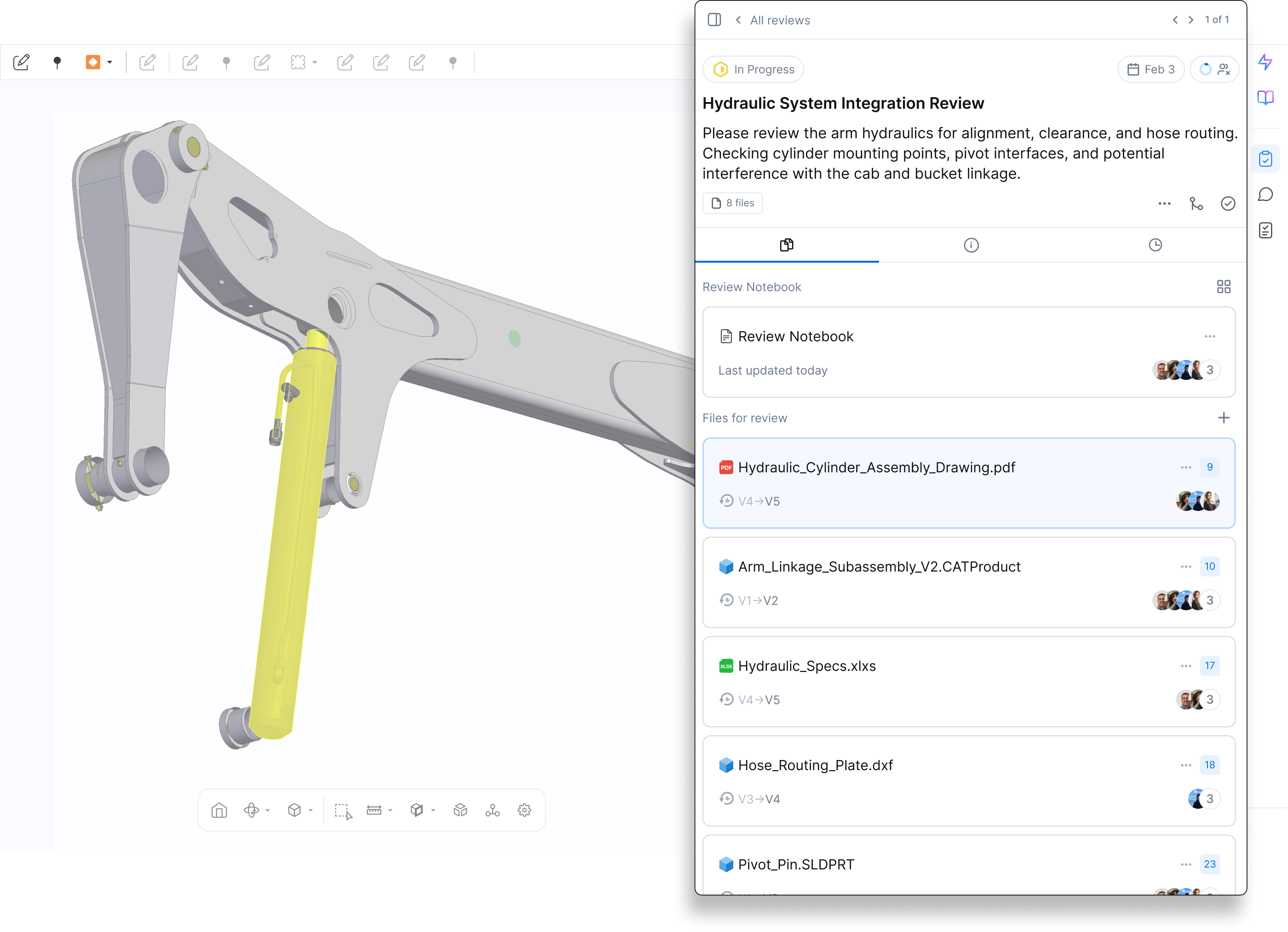
A new Files tab has been added to the review panel, showing both the Review Notebook and Files for Review.
What’s new:
- Toggle between card view and list view
- See file names, type icons, revision range, unresolved feedback count, and viewer activity
- “Unseen by you” and “Recent Views” indicators help track engagement
- File-level options now include:
- Open in new tab or split view
- Add to favourites
- Upload new revision (moved from review header)
- Remove file from review (adds activity note)
- Copy file link
You can also add more files to an existing review using the + Add Files for Review button in the Files tab. Adding files triggers an activity note and notifies reviewers.
AutoReview: Unread Badge
AutoReview now shows a badge when results are available that you haven't seen yet.
When AutoReview completes a run — whether you triggered it or another user did — a badge appears on the AutoReview icon for anyone who hasn't opened the results. The badge clears once you open the AutoReview panel.
Previously, the only indication that a run had completed was a success toast at the moment it finished. If you weren't in the app, or if someone else triggered the run, there was no way to know results were waiting without manually clicking into each file to check.
Files with AutoReview runs that completed before this feature launched will show a badge on first view — this is expected and will clear once the panel is opened. The badge appears for both 2D and 3D AutoReview results.
Custom Feedback Views
We’ve introduced the ability to create and save custom views of the feedback table at both the company and workspace levels, giving you greater control over how feedback is organized, filtered, and reviewed.
What’s New
Global Views:
Company Admins can now create and manage global feedback views that are visible across all workspaces and portals.
- Global views can only be created and edited at the company level.
- Admins are notified before publishing a global view to all users.
Custom Feedback Views in Workspaces:
- Create custom views directly inside a workspace or portal to organize and filter feedback for that specific context.
- Workspace and Portal Admins can manage permissions for creating, editing, and deleting custom views.
- All previously shared company-level views have been converted to company views.
Column Order and Visibility:
- When saving or updating a custom view, CoLab stores your chosen layout.
- Any change to filters, columns, or visibility prompts a “Save Changes” option to keep the view up to date.
AutoReview Instructions
Admins can now write persistent instructions that apply to every AutoReview run across the company — without requiring individual users to provide context each time.
Go to Company Settings → AutoReview → Instructions and enter plain-text guidance for AutoReview to follow. Instructions are applied automatically on all future runs. They're best used for context that applies consistently across all files — for example, background on your product line or manufacturing environment, feedback categories AutoReview should deprioritize, or preferred terminology.
This reduces noise from feedback that isn't applicable to your designs, and makes results more relevant from the first run without any extra steps from users. Instructions work alongside custom checklists and user input prompts — they don't replace either.
Also shipping today: you can now re-trigger a general analysis run from the + New menu in the AutoReview panel without re-uploading the file. Previously this required uploading a new revision.

Product updates
New updates and improvements to CoLab.