
Product updates
New updates and improvements to CoLab.

Create Notebooks in Drive
Notebooks can now be created directly in Drive — independent of any review — to capture pre-reads, requirements, decision logs, and the rest of the written context around a design.
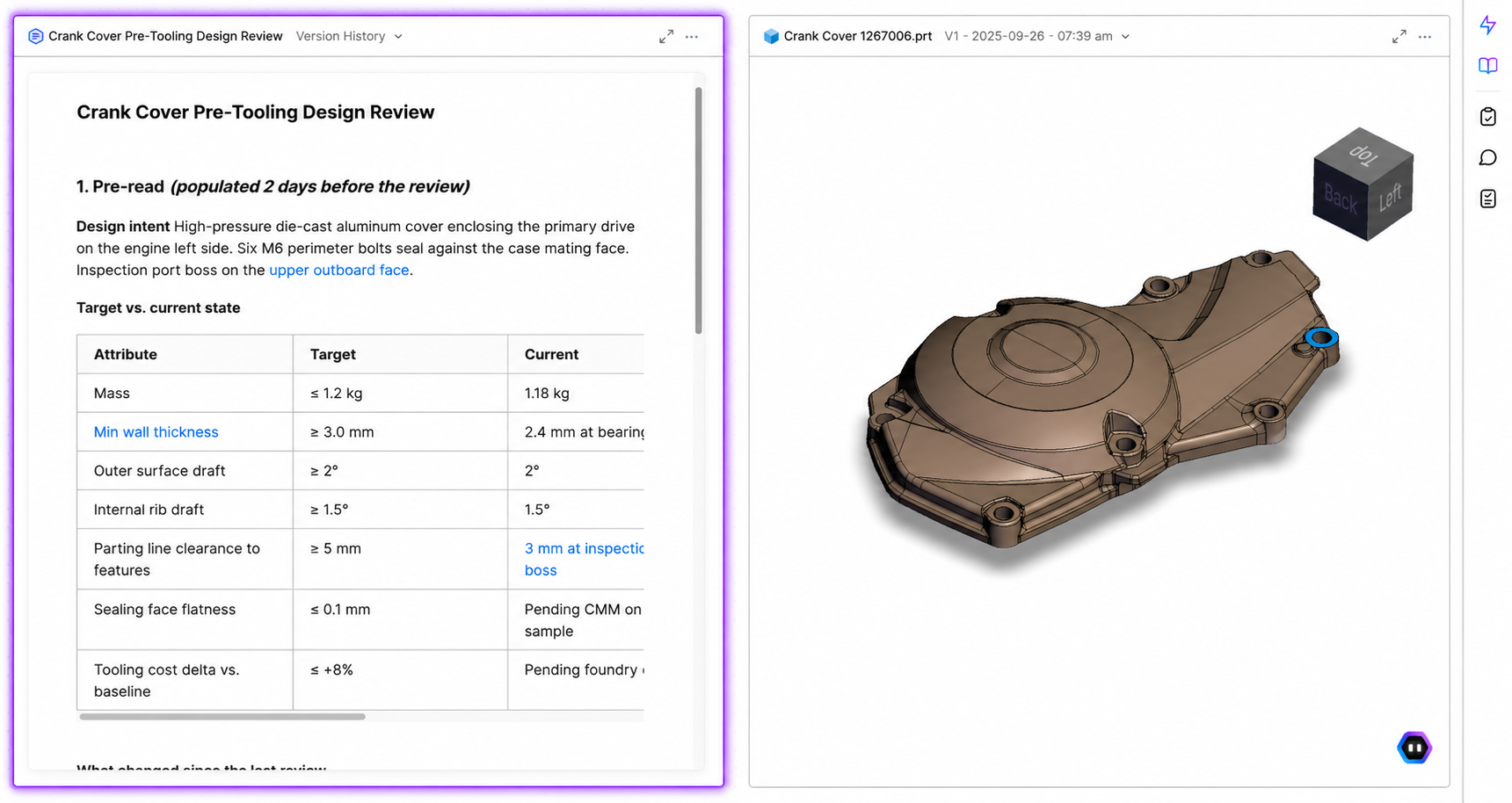
Review Notebooks have been in CoLab since June 2024 as the main writing surface inside of reviews. What's new is that Notebooks can now exist as their own asset in Drive, independent of any review. Every review still has one attached by default — that in-review version is now called Review Notes.
What you can use Notebooks for
- Pre-reads. Write the intent, scope, and constraints of a review in a Notebook and attach it. Reviewers open it in split view next to the model and arrive with context.
- Requirements documents. Keep the requirements driving a design next to the CAD it governs, instead of in a SharePoint folder a reviewer has to go find.
- Decision logs. Record tradeoffs, rationale, and outcomes attached to the work, so the decision trail is available for onboarding, audits, or follow-on programs.
- Supplier context. Share a Notebook to a Portal so suppliers see the same context internal teams do, without a separate email or attachment.
Working with Notebooks
A Notebook is created from the Drive menu or workspace homepage, the same way as any other Drive asset. It can be opened on its own or in split view beside a CAD file or drawing, attached to Reviews, and shared to Portals. Notebooks shared to two or more Portals are automatically read-only for portal guests, to prevent cross-supplier exposure. Otherwise, Notebooks behave like any other Drive asset — they can be organized, favourited, shared, and linked.
Coming in future updates:
- Export to PDF
- Comments or feedback inside Notebooks
- Full-text search across Notebook body content (titles are searchable)
CoLab integration for Creo
.png)
You can now upload files from PTC Creo Parametric directly to CoLab without leaving your Creo session.
The CoLab plugin for Creo adds a button to the Creo ribbon. With the plugin installed, you can sign in to CoLab from within Creo and upload your active model to any CoLab workspace you have access to.
Accepted file formats
- Part files (.prt)
- Assemblies (.asm), including all component parts
- Drawings (.drw) converted to PDF on upload
- Family Table parts and assemblies, including assemblies that contain Family Table parts and nested Family Tables
Windchill users
If your files are checked out from a Windchill PDMLink or ProjectLink workspace and open in Creo, the plugin will upload them to CoLab with the correct revision and iteration metadata preserved.
Supported versions
Creo 8.0.1 and above
Notes
- Files must be saved in Creo before uploading. If your file has unsaved changes, you will be prompted to save first.
- Suppressed components in an assembly are skipped on upload without notification in this release.
- Assemblies that contain non-Creo files (e.g., imported foreign geometry as standalone components) are not supported in this release.
- Creo Design Exploration Extension (DEX) is not supported.
- This plugin requires admin installation. Contact your CoLab admin to get set up.
Learn more here.
Custom Checklists in AutoReview
You can now run AutoReview against your company's own checklist templates, giving you more control over the checks AutoReview performs.
How it works
There are two steps. One for admins, one for all users.
Admins: Go to Company Settings → General → Checklist Templates. Each template now has an "Available in AutoReview" toggle.
Enabling a template runs a safety check on the content before it becomes available. Templates that pass will appear for all users across all workspaces. Templates that fail the check will be marked incompatible and won't appear in AutoReview runs.
All users: When starting a Peer Checker run, open the checklist selector. Your company's enabled templates appear under Your Checklists, separate from CoLab's built-in options. Select one and run as normal.
What to expect from results
AutoReview uses your checklist as input to guide its analysis — it passes the checklist name, items, and descriptions to its underlying agents. However, results are still limited by the check types those agents support. If your checklist includes items outside current agent coverage, AutoReview may not surface findings for those items. This scope will expand as new agents are added.
If you're getting fewer results than expected, this is the most likely reason. Your CSM can help you identify which checklist items are most likely to produce results with the current agent set.
More details
- Only company admins can enable or disable templates for AutoReview
- Enabled templates are available across all workspaces
- You can still use CoLab's built-in checklists at any time
For more informaton, read our Knowledge Base article.
2D AutoReview: Expanded Agent Coverage
AutoReview for 2D drawings now runs a broader set of specialized agents, significantly expanding the range of technical feedback it can generate.
Previously, 2D AutoReview used a single generalist agent and primarily surfaced feedback on missing dimensions, material inconsistencies, and text typos. AutoReview now dynamically selects from a factory of specialized agents based on the content of the drawing being reviewed — covering GD&T, tolerancing, dimensioning, fasteners, view integrity, BOM consistency, and more.
Custom checklists and user input prompts work alongside the agent factory — they direct which agents are prioritized and what context they operate with. The active agents for each run are visible in the processing panel.
If you've run AutoReview on a drawing previously, you will likely see new findings on the same file. This reflects expanded coverage, not a change in the design. The agent factory will continue to expand over time.
Import design feedback via CSV + New portal guest review permissions
Import feedback via CSV
You can now upload a CSV file to bring existing design feedback into CoLab and attach it to a specific file.
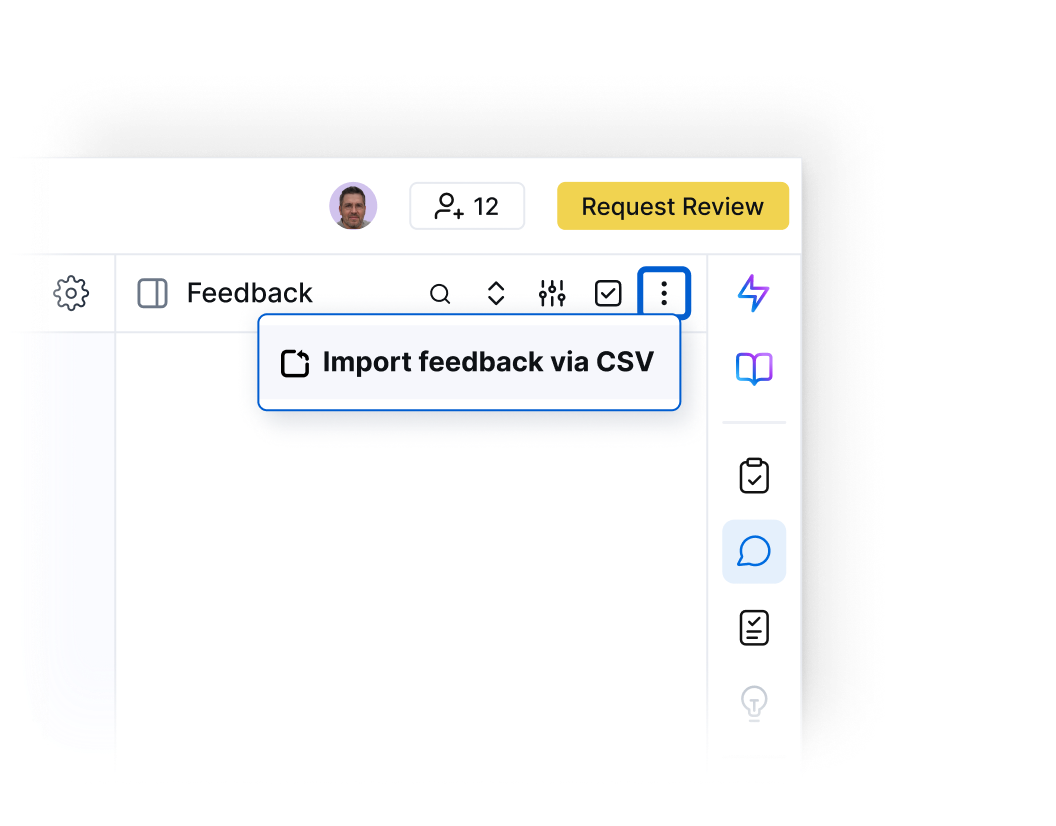
To import feedback:
- Open the file the feedback should be associated with
- Select Import feedback via CSV from the Feedback menu
- Choose a feedback type for the imported feedback items
- Upload your CSV file
- Add feedback pins and relevant markups
Each row in the CSV becomes a feedback item on that design.
Once imported, the feedback behaves like feedback created directly in CoLab. It can be reviewed, discussed, and tracked in the same way.
Learn more about importing feedback from outside of CoLab here.
New Portal Guest permissions for review creation and management
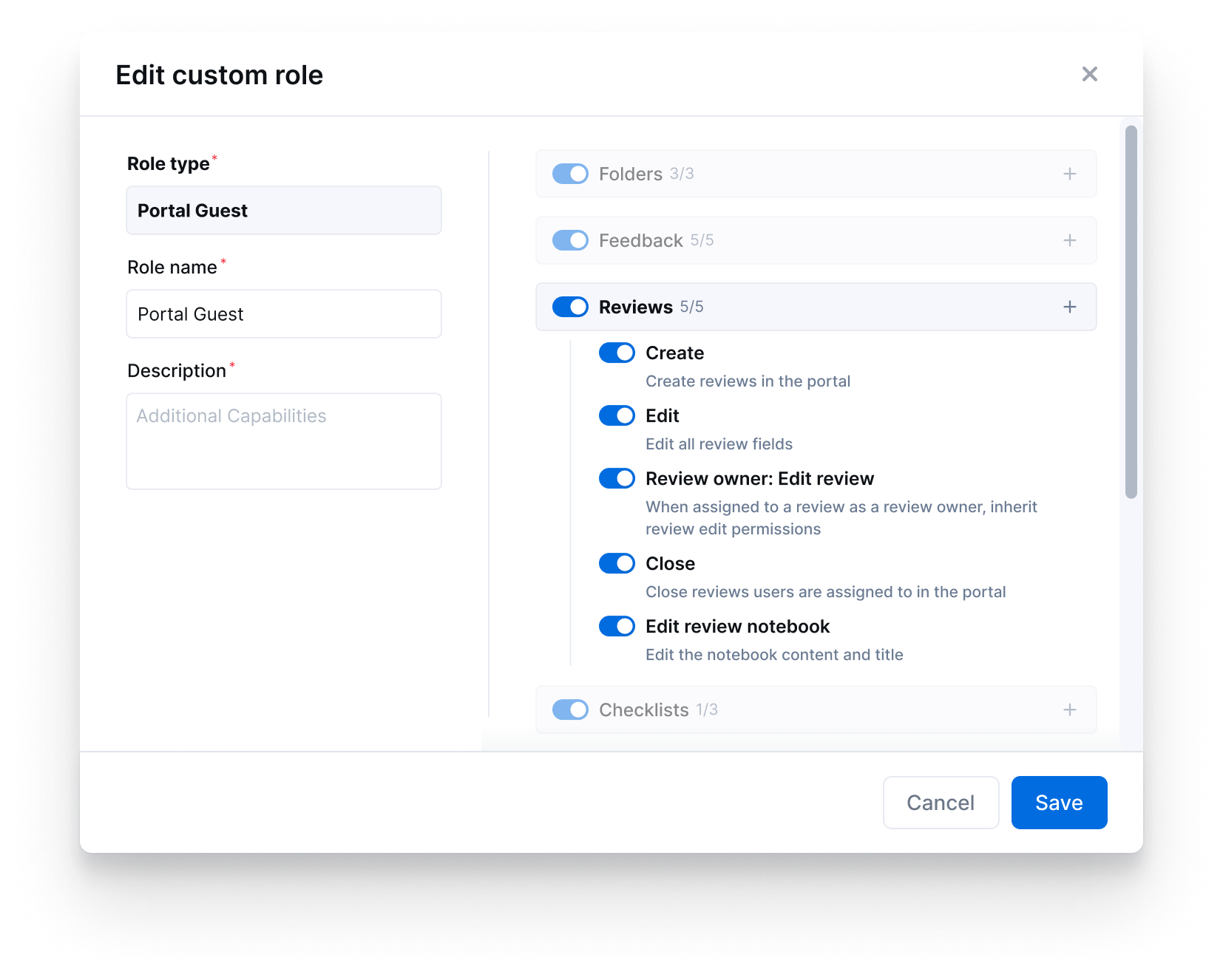
Admins can grant portal guests permissions that let them:
- Create reviews on files they upload
- Edit review details
- Act as review owners
- Close reviews
- Export review history
While these new options let external collaborators initiate and manage reviews, admins maintain full control what portal guests can and cannot do.
Enterprise API
CoLab now offers a versioned REST API that lets you access and manage CoLab data and actions programmatically. You can use the API to perform bulk actions in the application, and pull data from CoLab into other tools.
Admins generate API keys in Admin Settings > API Key Management and use those keys to authenticate requests to the Enterprise API. Once authenticated, you can:
- Add, update, or remove users from workspaces
- Create and manage workspaces
- Upload, update, and delete files in bulk
- Retrieve reviews and feedback for use in BI tools, databases, or IT workflows
More information on generating API keys can be found here.
API actions follow the same permission rules as the CoLab UI, and changes appear immediately across the product.
For more information, see our knowledge base or contact your Customer Success Manager.
Wall Thickness Analysis
.png)
You can now run wall thickness analysis directly on 3D models in CoLab.
This allows you to evaluate material thickness during a review without leaving CoLab or reopening CAD. Thickness variation is displayed on the model using a color map, making thin sections, thick transitions, and other potential manufacturability concerns easy to spot.
- Thickness is calculated across BREP geometry and visualized directly on the model
- The color scale reflects min/max thickness values and can be adjusted to focus on specific ranges
- A probe tool lets you inspect exact thickness values at any point on the model
- Feedback created during analysis preserves the thickness view and scale, so the context is retained when revisiting the issue later
This capability supports decisions around whether geometry is ready to move forward, what needs adjustment, and what should be flagged ahead of tooling or supplier review.
Wall Thickness Analysis is available on Pro and Scale plans.
Read more in our knowledge base article.

Product updates
New updates and improvements to CoLab.